Using a Board
When you open a board from the home screen, it opens in use mode — the mode where communication happens. In this mode every tap on a tile does something: speaks a word, opens another board or triggers a game effect. Editing is locked, so you can safely hand over the device. This page explains everything that happens in use mode; for building the board itself see Editing a board.
Tapping a tile
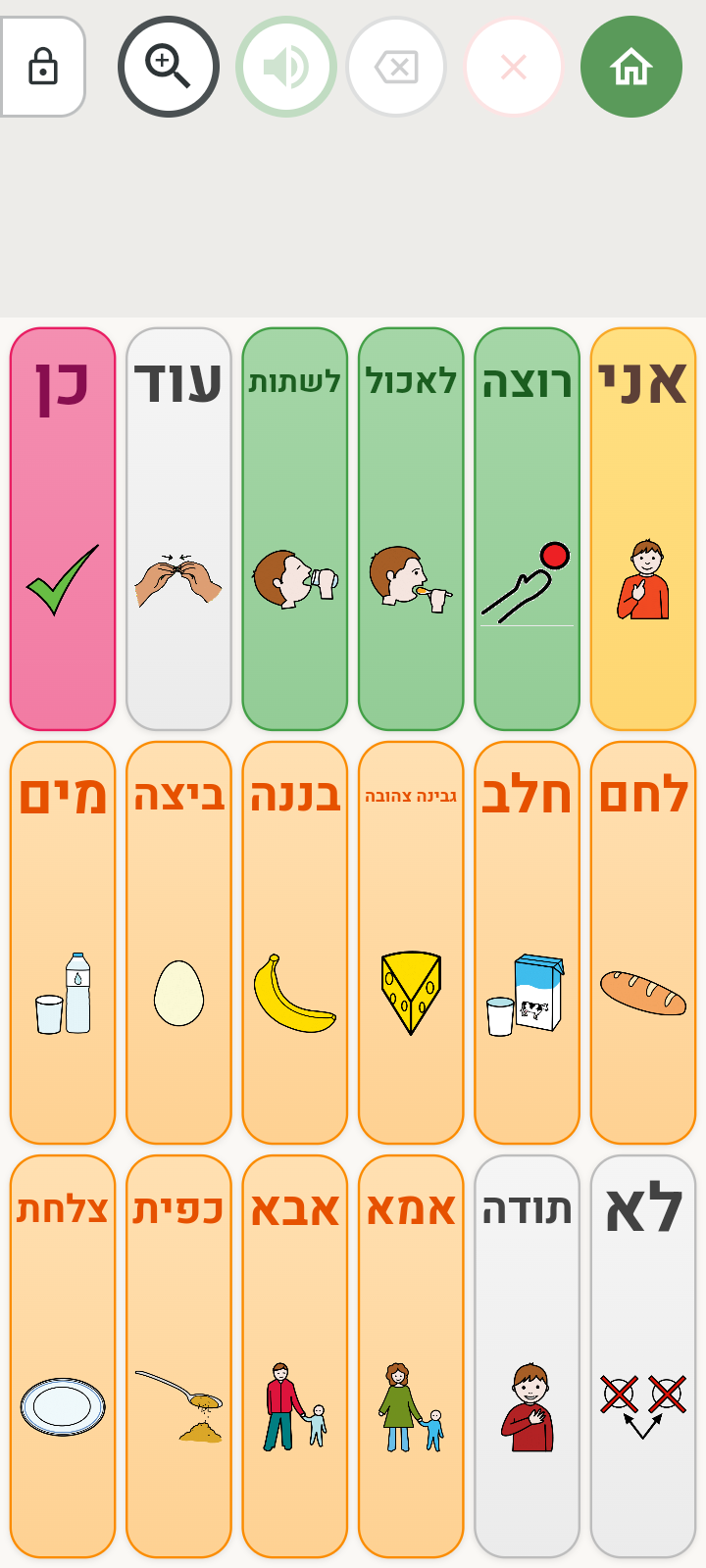
Tapping a word tile speaks it and adds it to the reading line, where the words accumulate into a full sentence.
What exactly do you hear on tap? The app chooses in this order:
- Personal recording — if a voice was recorded for the tile, it plays.
- Custom spoken text — if spoken text different from the word on the tile was set.
- The word itself — with its nikud (Hebrew vowel marks), in the app's text-to-speech voice.
How to set up a recording or custom text — on The tile voice page.
By default, tapping the same tile again in a row doesn't add the word to the reading line a second time — so accidental double taps don't flood the sentence. You can turn this behavior off in Settings, under “Prevent consecutive duplicates”.
Moving between boards
Boards can lead to one another — for example, a “food” tile that opens a whole board of dishes:
- Navigation tiles are recognized by their folder shape, and tapping them opens the target board. You can set the word on the tile to be spoken during the transition too.
- Auto-return tiles open another board, and after one word is chosen there you return automatically to the board you came from — handy for a quick pick from a category.
- The home button on the reading line returns to the home screen. After moving to another board it turns into a back arrow, which returns to the previous board. When the board is set up without a reading line, a round floating home button appears in the corner of the screen.
- The device's back button or gesture goes back to the previous board inside the app — it doesn't close the app.
How to create navigation and back tiles — on the Tile actions page.
If the target board was deleted
When a navigation tile leads to a board that has since been deleted, nothing scary happens: a screen appears with the message “Board deleted”, the suggestion “Consider updating the tile's navigation” and a back button. It's then a good idea to edit the tile and update its navigation target.
The edit lock
The edit button, at the end of the reading line, is locked in use mode to prevent entering editing by accident:
- Press and hold the button — the button fills up gradually.
- When the fill completes, the lock opens and the board switches to edit mode.
- To lock again — another long press, or simply leave the board.
On phones the button widens for as long as you hold it, opening into a long bar so the fill stays visible beside your finger instead of hidden under it. It returns to its normal size on release, or when the fill completes.
If a lock code was set in Settings, tapping the button opens a code-entry dialog — and editing opens only after the correct code is entered. This is the recommended protection when the device is in the hands of the users themselves.
Scrolling on wide boards
When a board has more columns than fit on the screen, the tiles extend past the edge: the edge of the next column peeks in from the side, and arrows at the screen edges signal there's more content. Tapping an arrow scrolls one column, and you can also swipe with a finger. The number of visible columns is set in board settings.
Game tiles
Some tiles don't add a word but trigger a full-screen game effect — confetti, fireworks, a dice roll, a coin toss and more. They're great for reinforcement and turn-taking games, and they don't affect the reading line. All the effects are listed on the Tile actions page.
Using on a phone
Boards work on a phone too: the grid stays exactly as it is, the tiles shrink to the screen's width, and the reading line stays within reach. For tiles that get too small there's a solution — the magnifier in the next section.
The magnifier on phones
On a phone, where tiles are naturally small, you can turn on magnifier mode: tap the zoom button (a magnifying glass with a +) on the reading line. The board is shown in a magnified window that displays part of the tiles at a comfortable tapping size, and dragging with a finger moves the window across the whole board — a fade at the edges signals where there's more content. Tapping the button again (a magnifying glass with a −) returns to the regular view. The mode is remembered on the device even after closing the app.
Magnifier mode exists on phones only — on tablets and computers the tiles are big enough as they are. More size adjustments are explained on the Accessibility page.