The Tile Image
Every tile can have an image that appears above the word. In the tile editor (how to get there is explained in Tiles), in the Content tab, you'll find the Image section — a row of labeled modes: Symbols, Web, Upload, Video and None.
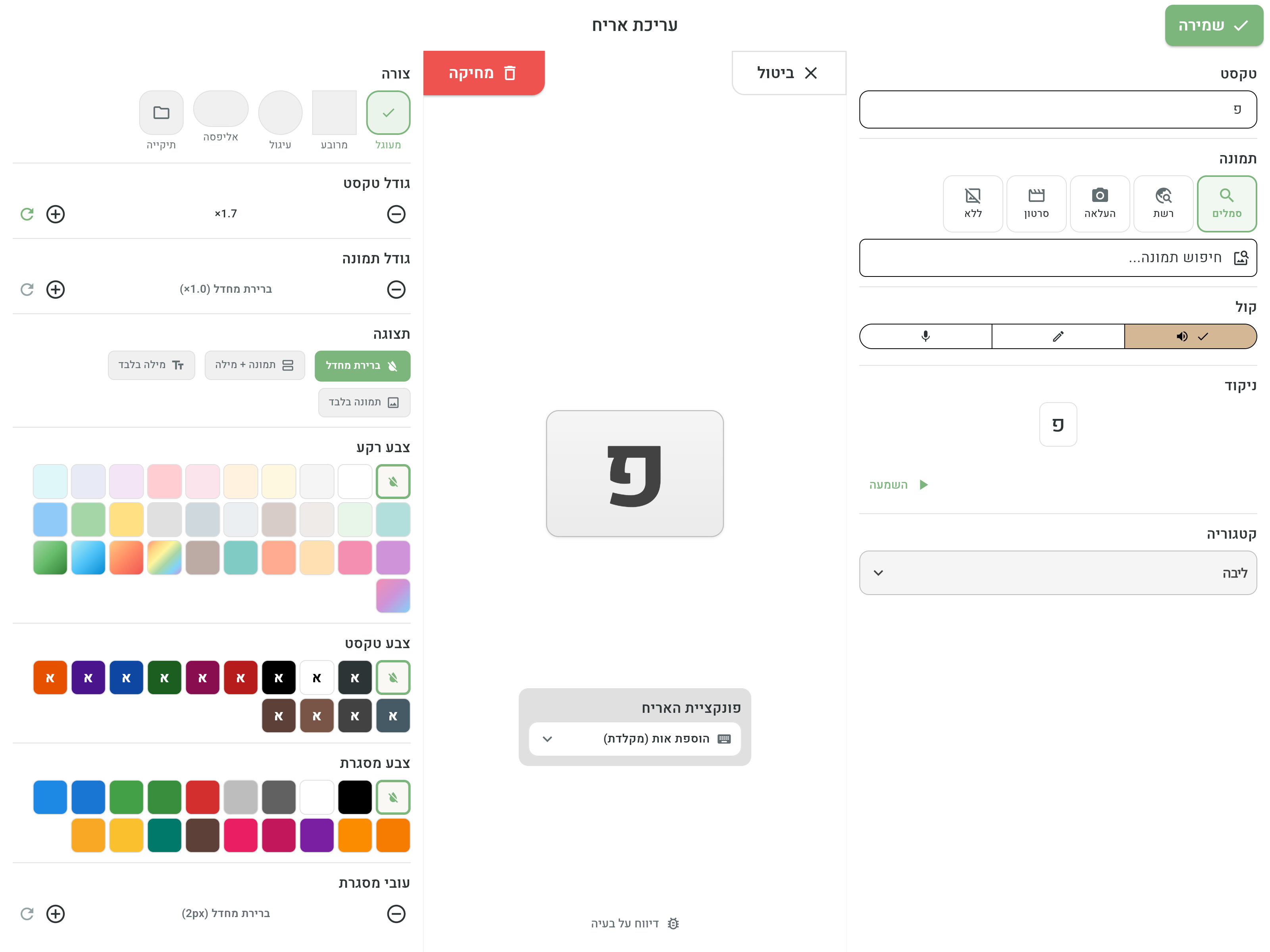
Searching the built-in symbols
This is the regular mode, and it works on its own: as you type the word, the app automatically finds a matching symbol from the built-in symbol library. In most cases you don't need to do anything — type “apple” and you get an apple.
When an older tile has no saved personal image, the editor returns to Symbols. In automatic mode, choosing another autocomplete word also attaches its symbol. A specifically selected drawing remains fixed when the editor is reopened.
Want a different symbol from the library? Type a search term in the Search images... field and pick from the results. When the library has several symbols for the exact word, they all appear first so you can choose the right illustration; related results follow them. That way you can, for example, attach a soup symbol to the word “meal”.
The official Emorli pack is bundled with the app, and additional supported free packs can be downloaded for personal use. Choose between them on Image Packs; the choice affects all boards at once. Every pack follows the same sizing rules, and Emorli pictograms are tightly cropped to avoid unnecessary margins.
Automatic Emorli images follow the realistic/stick-figure and gender preference, including on existing boards. Choosing a particular drawing from image-search results fixes that artwork across preference changes. Use the reset button beside the image to return to automatic selection. All alternatives remain available in search.
The built-in symbols are stored inside the app, so searching them works even without an internet connection.
Searching the web
When there's no suitable symbol in the built-in library — say for a well-known character, a brand or a very specific object — you can search the web for an image (from the image site Pixabay):
- In the image section, switch to web search mode (the globe icon).
- The search field fills in automatically with the tile's word — you can also type a different one. For Hebrew content you type in Hebrew, and the app translates the search behind the scenes (the term actually searched is shown above the results).
- Choose between Illustrations — drawings that blend nicely with the other symbols on the board — and Photos of the real thing.
- Tap the image you want, and it goes onto the tile immediately. For more results, tap More results.
Unlike the built-in symbols, web search requires an internet connection. An image that has already been chosen for a tile is saved and keeps appearing even without a connection.
A personal image
Sometimes nothing beats a real photo — grandma's face, the favorite toy or the classroom at school:
- Gallery — pick a photo already on the device.
- Camera — take a new photo on the spot.
- Previous images — every personal image ever used on any tile is kept in a personal collection, so you can use it again on other tiles without hunting for it in the gallery.
Your personal images sync to your other devices, so a tile with a photo taken on the phone looks exactly the same on the tablet.
Animated video
Some words — mostly actions like "run", "eat" or "sleep" — have a short animated clip that illustrates the action better than a still image:
- In the image section, switch to Video mode.
- Type a word in the Search video... field and pick a clip from the list. The clip plays right away in the editor's tile preview.
The characters appear without a backdrop and blend into the tile color like any symbol (clips with a full scene — a pool, a bathroom — keep their scene). Once a clip is selected, two settings appear:
- On the board — "On tap" (the default, first button) plays the clip through once each time the tile is tapped, together with the speech, then settles on a resting image; "Loop" is an alternative that plays the clip continuously.
- In the reading line — what happens when the word enters the reading line: "On add" (the default) plays the clip once as it's added; "Loop" keeps it playing while the word is in the line; "Still image" shows only the resting image.
The clips are stored inside the app — like the built-in symbols they work without an internet connection, and everywhere else (board previews, printing) a quiet resting image is shown. The library is still small and grows with every release.
If the device's reduce-motion accessibility setting is on, tiles show a still image instead of the clips.
No image
Choosing None shows the tile with the word only — useful for connecting words (“of”, “also”) or for text-only boards for skilled readers. You can achieve a similar effect through the tile's display setting — see Tile appearance.
A tile with just an image
The opposite is possible too: a tile that shows an image with no word. Tiles like this are created by leaving a word field empty in Multi-add — useful for photos of family members or objects whose word isn't relevant yet. Such a tile behaves like any other: you can move it, style it, and add a word at any time through the tile editor.
Back to the automatic symbol
After an image has been chosen manually — from the library, the web or the gallery — a refresh button (“Back to the text-matched image”) appears next to the current image. Tapping it restores the automatic match based on the written word.