
Accessibility and Personalization
The Display and accessibility group in Settings gathers the visual adjustments for the whole app — from the image source to the category colors. Everything here applies to all boards; targeted adjustments for a specific board or a specific tile are explained at the end of the page.
A Live preview of six tiles with real images starts collapsed. Touching a visual setting opens it automatically; tap its heading to show or hide it whenever you want. It floats over Settings without changing control positions. It updates with the image pack, people style and gender, image size, spacing, contrast, adult mode and category colors. Image-size and spacing sliders are adjacent, with changes visible during the drag. Images follow the selected pack's available coverage; missing images display as text, just like a board.
The Love preview tile demonstrates male and female realistic images, stick figures and an adult image according to your preferences.
Accessibility on the website, guide and dashboard
Open the accessibility center using the round person-icon button at the bottom of the page. Its name appears on hover or keyboard focus and is available to screen readers.
The Accessibility center button at the bottom of the website, guide and dashboard offers text enlargement up to 200%, high contrast, reduced motion, emphasized links and text spacing. Reset preferences restores defaults; your device's reduced-motion preference still applies.
Preferences are saved in this browser separately for each site. They do not change app or board settings. Browser zoom also remains available. Use Tab to move between controls and Escape to close the center. Demonstration videos use playback controls and do not start automatically.
The center and page footer link to the accessibility statement and contact details for reporting difficulties.
You can also choose Plain reading font and Emphasize headings. The center includes keyboard instructions and a direct link to report a difficulty. At the start of a page, Tab reaches Skip to content first, then the accessibility center. Inside the center, Tab and Shift+Tab move between controls; Escape closes it and returns focus to its opening button.
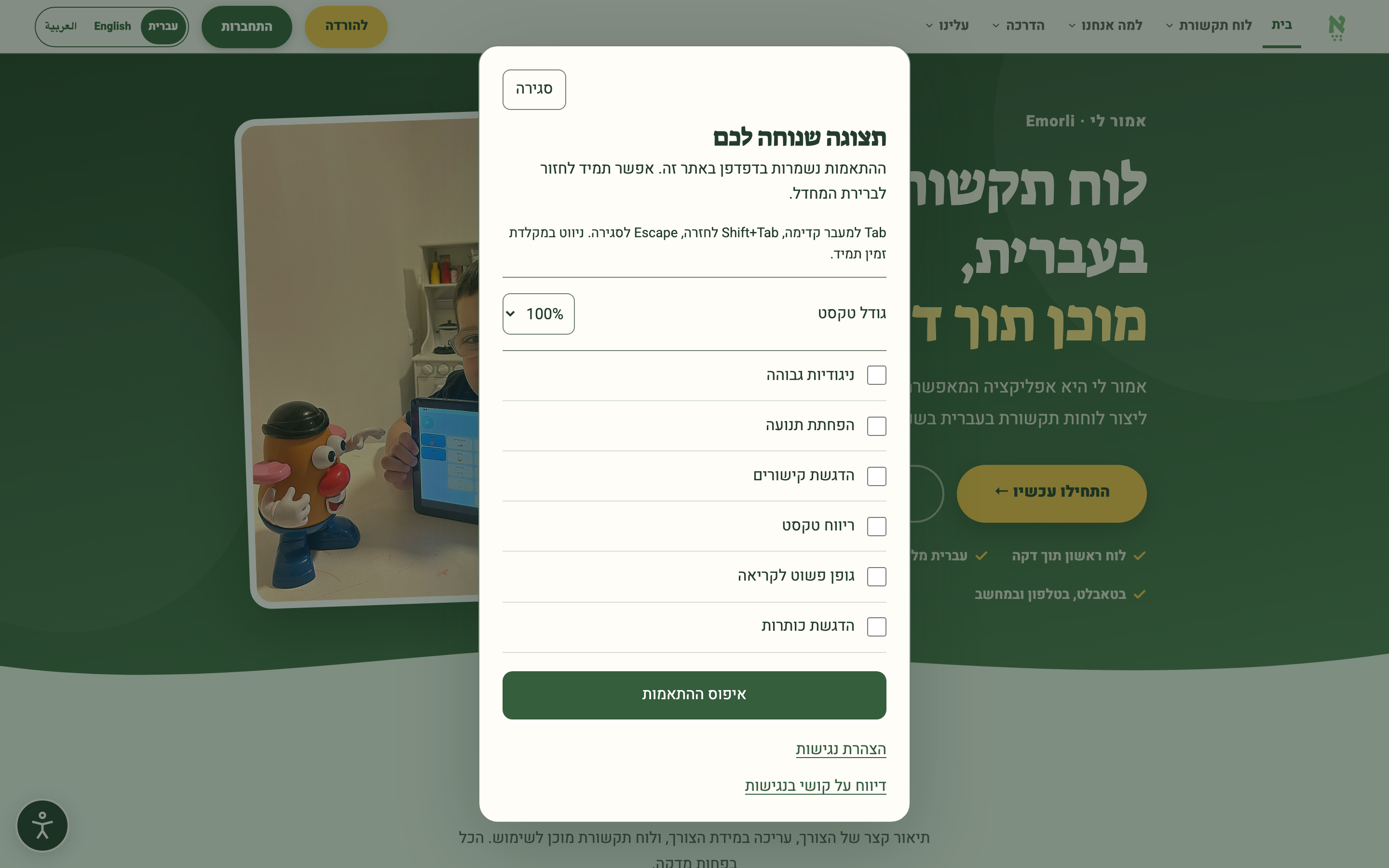
Image packs
The official Emorli pack is bundled with the app and is always available. On Image packs, you can select it or download supported free packs for personal use. Words without a matching image are displayed as text only.
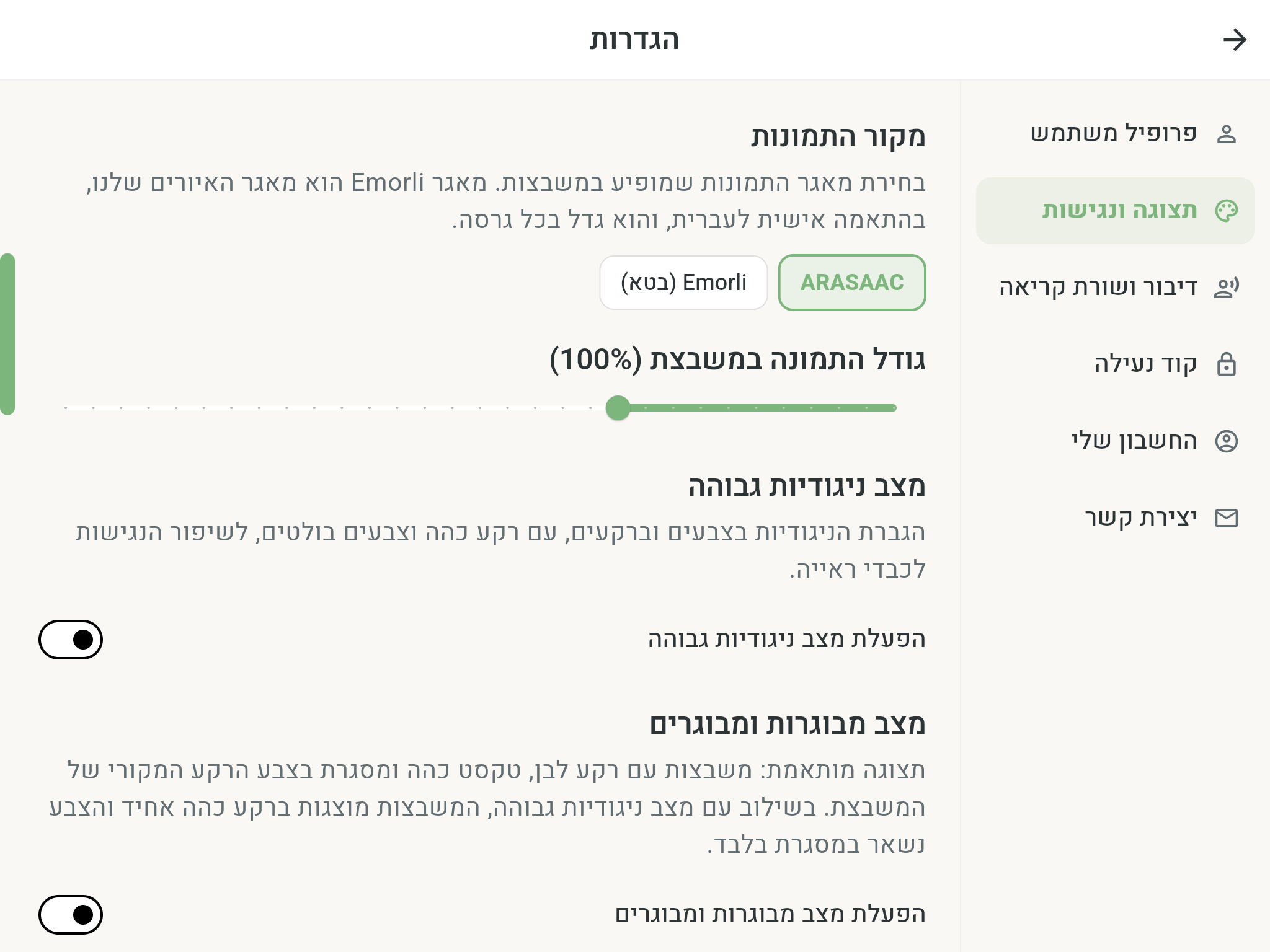
Image size within the tile
The Image size within tile slider adjusts all images together, from 50% to 200%. It is a multiplier: it multiplies the image size set for the tile, or the board default when the tile has no override. For example, 150% enlarges both a 1× image and an image set to 2× by a factor of 1.5.
At 100%, the image fills the normal maximum safe image height unless the tile's width limits it first. Higher values zoom the image within a fixed image area; they do not move the label or let the image overlap it. The label always stays at the top of the tile.
Space between tiles
The Space between tiles slider ranges from No gap to Wide gap, up to 600% of the usual gap. A six-tile Live preview changes as you move the slider. 100% is the usual spacing; Reset restores it.
Your choice saves automatically on this device when you release the slider and works offline. It applies to all existing and new boards in use mode and edit mode, including the dynamic row. Wider gaps leave less room for tiles, making them smaller. Very dense boards limit the gap to keep tiles visible. Tile positions and the number of rows and columns stay the same.
High-contrast mode
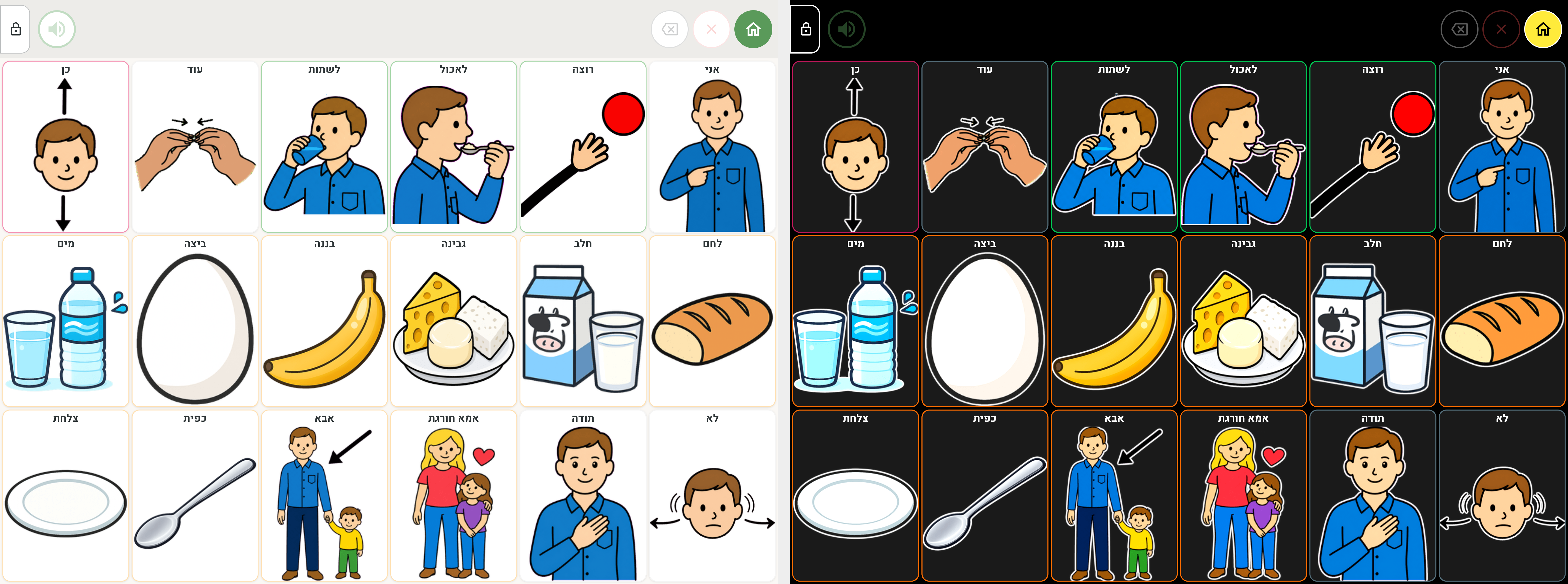
Boosts the contrast across the whole app: a dark background and bold colors. This mode is designed to improve accessibility for people with low vision, and in particular for users with cerebral visual impairment (CVI).
Adult mode
A mature, understated look for tiles: a white background, dark text, and the category color moving from the background to the border. Combined with high-contrast mode, tiles are shown on a uniform dark background and the color remains only in the border.
With Emorli images, this mode also prefers Adult images for automatic selection, including existing boards. If unavailable, realistic people for the same concept are preferred, followed by stick figures. Explicitly selected images stay fixed. Turning the mode off restores the previous image-style preference. See Image packs for style and gender details.
Customizing category colors
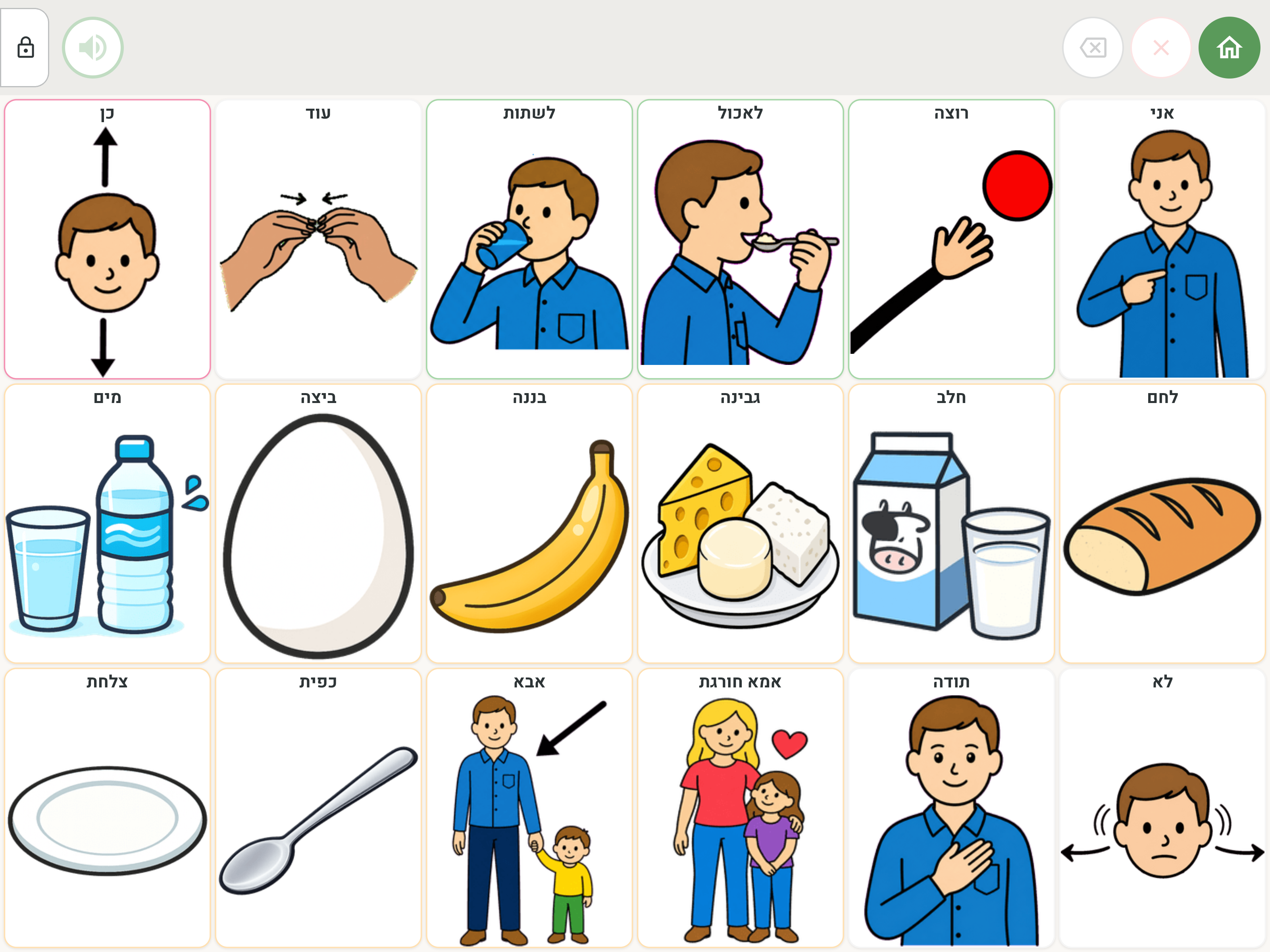
The Category colors section starts collapsed to keep Settings uncluttered. Tap the section to reveal the color controls. For each clinical category (noun, verb, adjective, person, emotion, core words) you can change the background, border and text colors — and return to the default colors with a reset tap. The customization applies to all boards. For the category colors and what they mean — see the Tile appearance page.
Speech and reading line
Three more adjustments live in the Speech and reading line group in Settings:
- Speech rate — the speaking pace. 100% is the default rate, with a range from 50% to 300%.
- Reading line button size — bigger buttons for those who need generous tap targets.
- Prevent consecutive duplicates — tapping the same word again won't add it to the reading line a second time.
The magnifier on phones
On phones, where tiles are naturally small, the magnifier button on the reading line enlarges the board and shows a window of some of the tiles at any moment — you scroll to reach the rest. The magnification stays active on every screen until you turn it off, and it's remembered per device.
Adjustments for a specific board or a specific tile
The settings on this page apply to the whole app. In addition:
- Every board has settings of its own — number of rows and columns, text and image size, and more — in board settings.
- Every tile can have its text and image size, colors, and display customized in Tile appearance. Resetting a tile's image size makes it inherit the board size again.