
Editing a Board
In edit mode you change the board's content: add and move tiles, edit them, organize the board — and even ask the AI assistant to make changes for you.
Entering edit mode
Inside a board, the edit button is locked to prevent accidental taps. Give it a long press — hold until the button fills up — and you'll enter edit mode. If you've set a lock code, tapping the button opens the code dialog, and entry is only possible after entering the correct code.
What you do in edit mode
- Tap a tile — selects it and shows editing and resizing actions. Empty selection circles appear on the other tiles. Tap the pencil to open the tile editor and change the word, picture, voice, color, shape, and more.
- Tap another tile — automatically enters multi-select with both tiles selected.
- Tap an empty cell — adds a new tile in that spot.
- Press, hold, and drag — moves a tile to another position on the grid.
Saving and exiting
All changes are saved automatically as you work — which is why the button for leaving edit mode is simply called Save. If you're editing a patient's board through the shared workspace, tapping Save also syncs the changes immediately; if the sync fails (for example, with no internet) a "Save failed" message appears with two options — Retry or Leave without syncing. Even when leaving without syncing, nothing is lost: the changes are saved on the device and will sync at the next opportunity.
Undo and redo
Made a mistake? You can undo — up to 200 steps back in each board:
- With the arrow buttons in the toolbar: one arrow undoes the last action, and the other redoes it.
- Or with a gesture: a two-finger horizontal swipe on the board — one way to undo the last action, the other way to redo it.
Multi-select and batch editing
To change or delete several tiles at once, tap one tile and then another. Both are selected and the toolbar automatically changes to multi-select mode. Keep marking tiles with a tap, or use Select all. With tiles selected you can:
- Batch edit — changes the appearance of all the selected tiles together, for example color or shape.
- Delete — removes all the selected tiles.
- Move together — press and hold any selected tile, then drag it. All selected tiles move together and keep their spacing, even if they are not adjacent. Tiles in the way move into available space; if they cannot fit, the move is cancelled. One undo reverses the entire move.
After moving the selected tiles together, they stay selected so you can move them again. Moving an unselected tile to a new position clears the previous selection. If you return a tile to its original position or the drop cannot be placed, the selection stays as it was.
The toolbar leads with the selected tile count and a Select all or Deselect all button. Batch edit and Delete are grouped on the opposite side, matching the style and height of the other editing buttons; Delete is highlighted in red. Tap × beside the count to clear the selection and leave this mode.
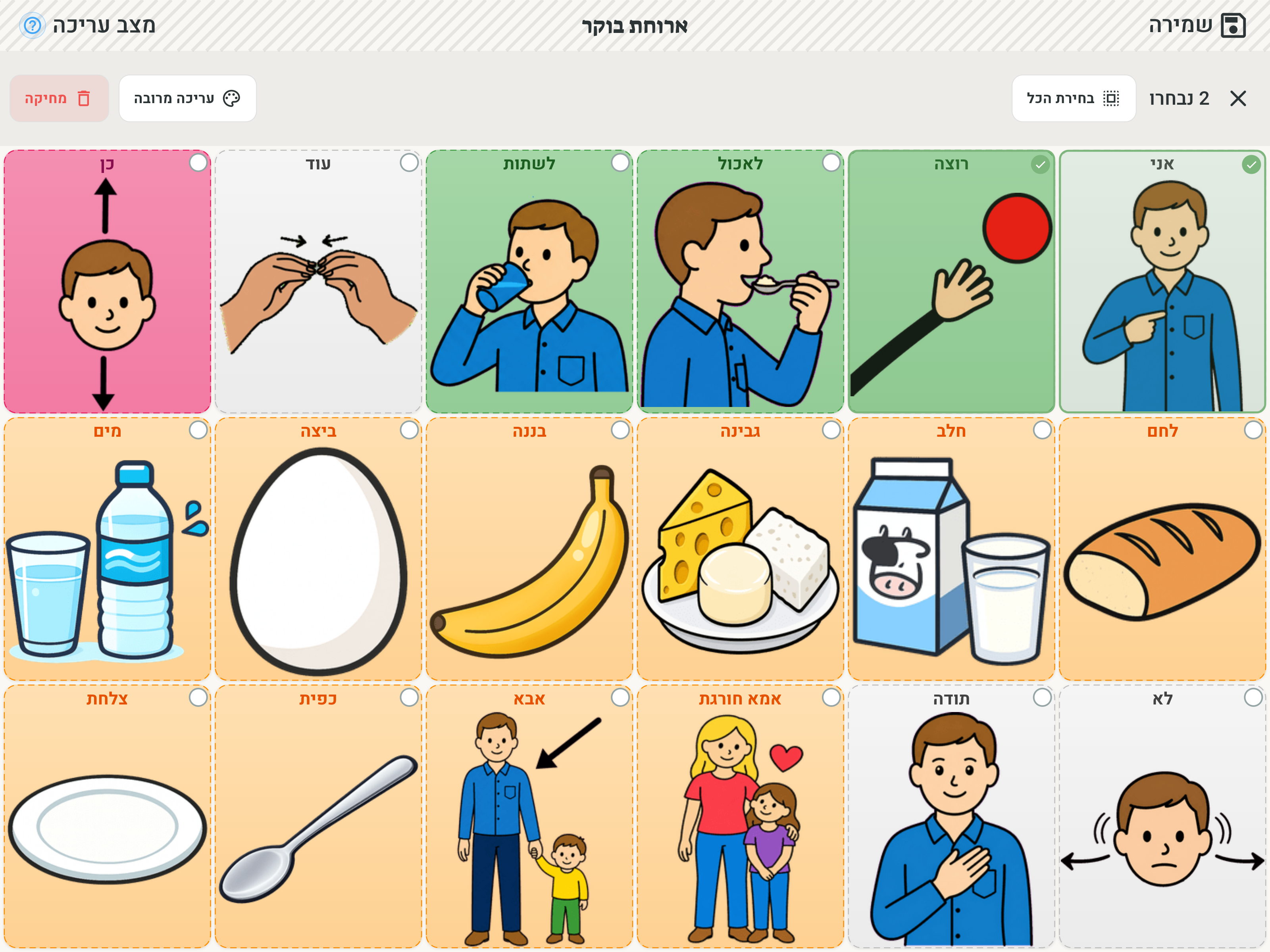
If you deselect tiles until only one remains, multi-select closes automatically and the remaining tile gets its editing and resizing actions back.
Multi-add
When you need to add many tiles at once, Multi-add saves you going tile by tile. The button opens a three-step flow:
- Pick images — the screen opens on a selection of everyday words, and typing in the search field narrows them to the symbols matching your word. Mark several results with a tap, or use From gallery to pick several personal photos together. The picks collect into a strip at the bottom of the screen and stay there while you search for another word. Tapping a picked image again removes it.
- Add words — a list with one row per image. Type a word, and the keyboard's "next" jumps automatically to the following row. You get the same autocomplete as in regular tile creation, and picking a word from the list also sets the word type — and therefore the tile's color. Images picked from the symbol library arrive with their word already in place. A field can be left empty — the tile is created with just the image.
- Making room — a step that appears only if the new tiles don't fit on the board. A red counter shows how many tiles have no room, and you can enlarge the board with the row and column sliders (the slider stays red while there isn't enough room and turns green the moment everything fits) or mark tiles for removal under Delete existing tiles — every tile on the board is shown there, and tapping one marks it for deletion. You can combine both — the counter updates as you go.
Tapping Add finishes: the tiles are placed into the free cells in reading order. The whole thing — the additions, the deletions and the resize — counts as one action, so a single undo returns the board to its previous state.
Organizing the board
The Organize board button arranges the board automatically: the tiles are grouped into blocks by their word categories, in a clean, consistent layout. Not happy with the result? Organizing is a regular action — you can undo it with a single undo.
AI assistant — editing in chat
The AI assistant button opens a chat where you request changes in your own words: "Add a row of feelings", "Change all the colors to green", "Rework the board around a winter theme". The assistant shows the actions it proposes, and you decide — accepting applies them to the board, declining brings back the question "What would you like to do instead?". The conversation continues: you can ask for a fix on top of a fix, and every change that's applied can be undone as usual. The AI assistant requires an internet connection.
The assistant also knows your other boards, so you can ask it for connections between boards: "Connect this tile to my food board" will link an existing tile to another board, and "Create a feelings folder with a sub-board" will build a new board, fill it with words, and add a folder tile on the current board that opens into it. You can read more about tile navigation actions on the tiles page. To create a whole group of boards from scratch, it's better to use Creating with AI.
More in the toolbar
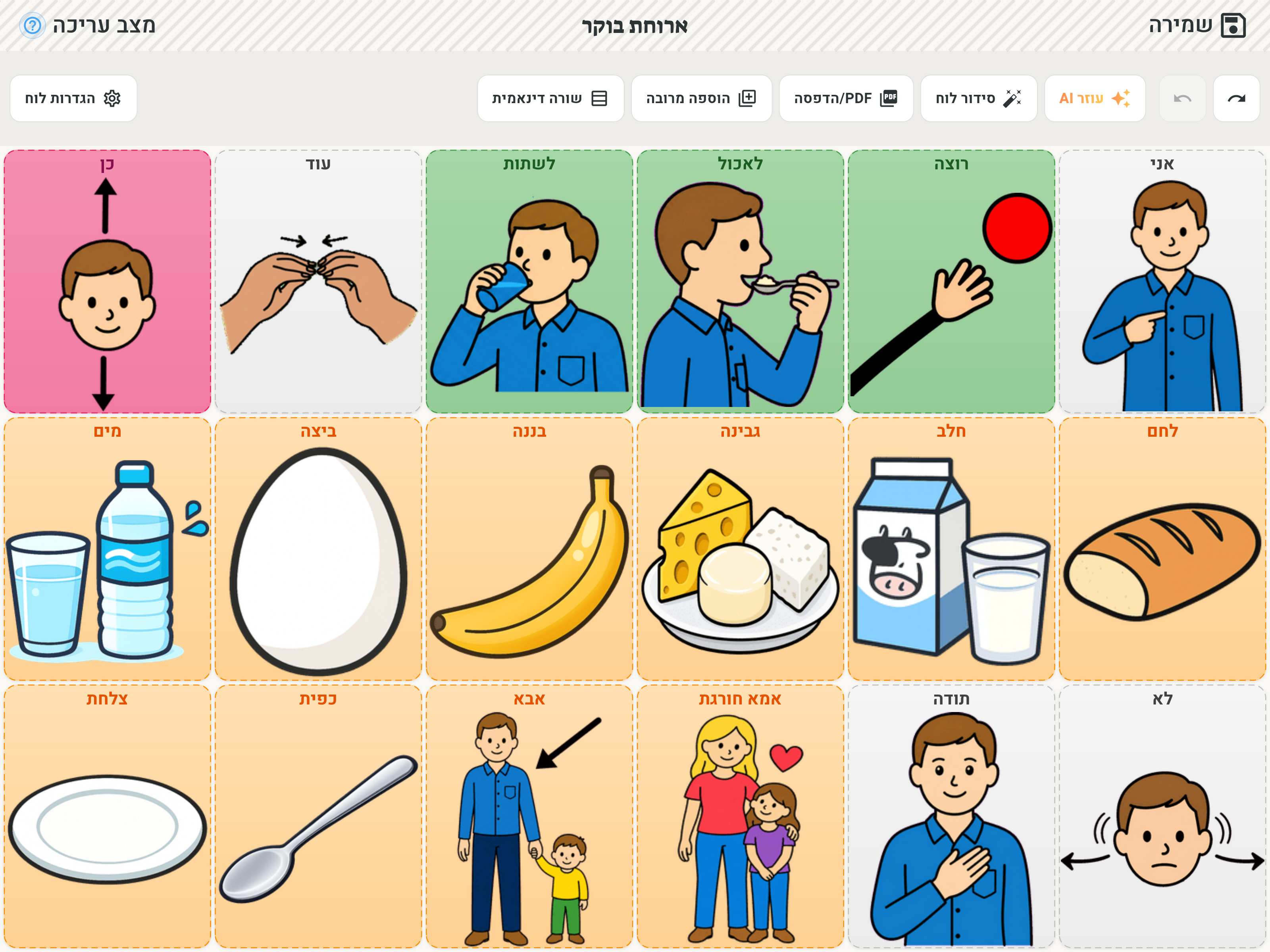
- Multi-add — adding several tiles at once, see above.
- Dynamic row — turning the board's dynamic row on and off.
- Board settings — name, grid size, background color, reading line, and more: Board Settings.
- PDF/Print — printing the board or saving it as a PDF.
In the built-in boards that come with the app, tiles can't be edited — in their edit mode only Dynamic row and PDF/Print are available. To fully edit such a board, duplicate it from the home screen into "My boards" and edit the copy.