Image Packs
The Image packs screen lets you choose the image style shown on tiles. Open Settings, go to Display and accessibility, and select Image packs.
Official and additional packs
The browser versions (the professionals portal and web demo) use the built-in Emorli pack. Downloadable community packs are for the installed app; an older browser selection does not prevent Emorli images from appearing.
After a web update, reload any tab that was already open to load the current images. There is no need to delete boards or clear your browser's saved data.
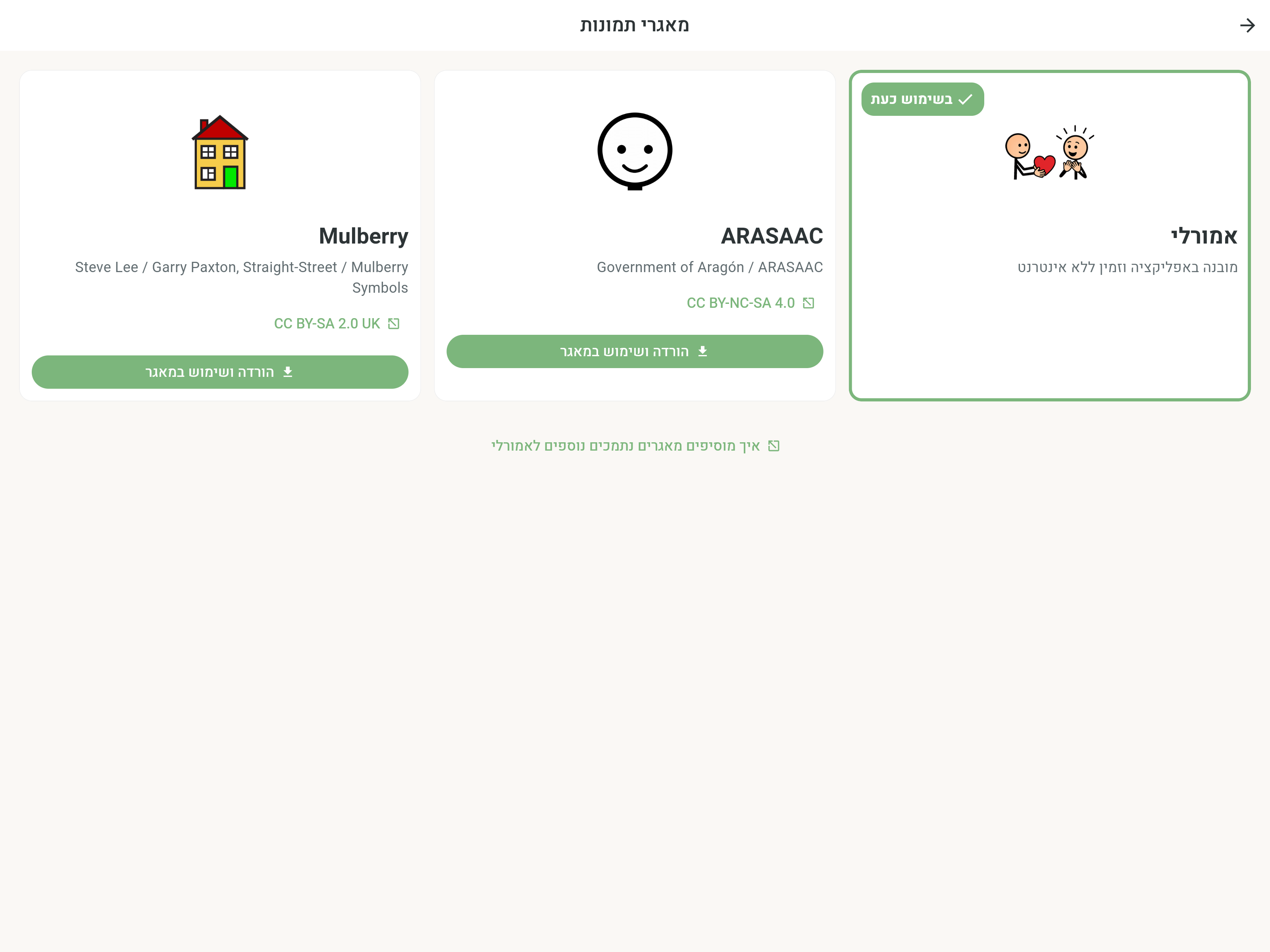
Emorli is the official pack and is built into the app. It contains illustrations and adult images, is always available including offline, and is updated with verified images and new words. Each pack has a card with a large name and representative pictogram. Cards appear side by side when space allows. The selected card has a thick green outline and a filled check badge. An additional pack's representative pictogram is available even before the full pack is downloaded.
The Emorli Pack pictograms are proprietary content of Emorli and its founders. They are licensed for use within the application and in board printouts produced directly by it for personal, educational, or clinical needs. The pictograms may not be extracted, distributed, or used separately from the application, and no commercial use is permitted without Emorli's prior express written permission. See the Terms of Service for the complete terms.
ARASAAC and Mulberry may appear under Supported free packs for personal use. They are not part of the official Emorli pack and must be downloaded before use. Availability may change; an unavailable pack is not shown. If a selected pack becomes unavailable, the app automatically returns to Emorli without deleting downloaded files.
Default people images
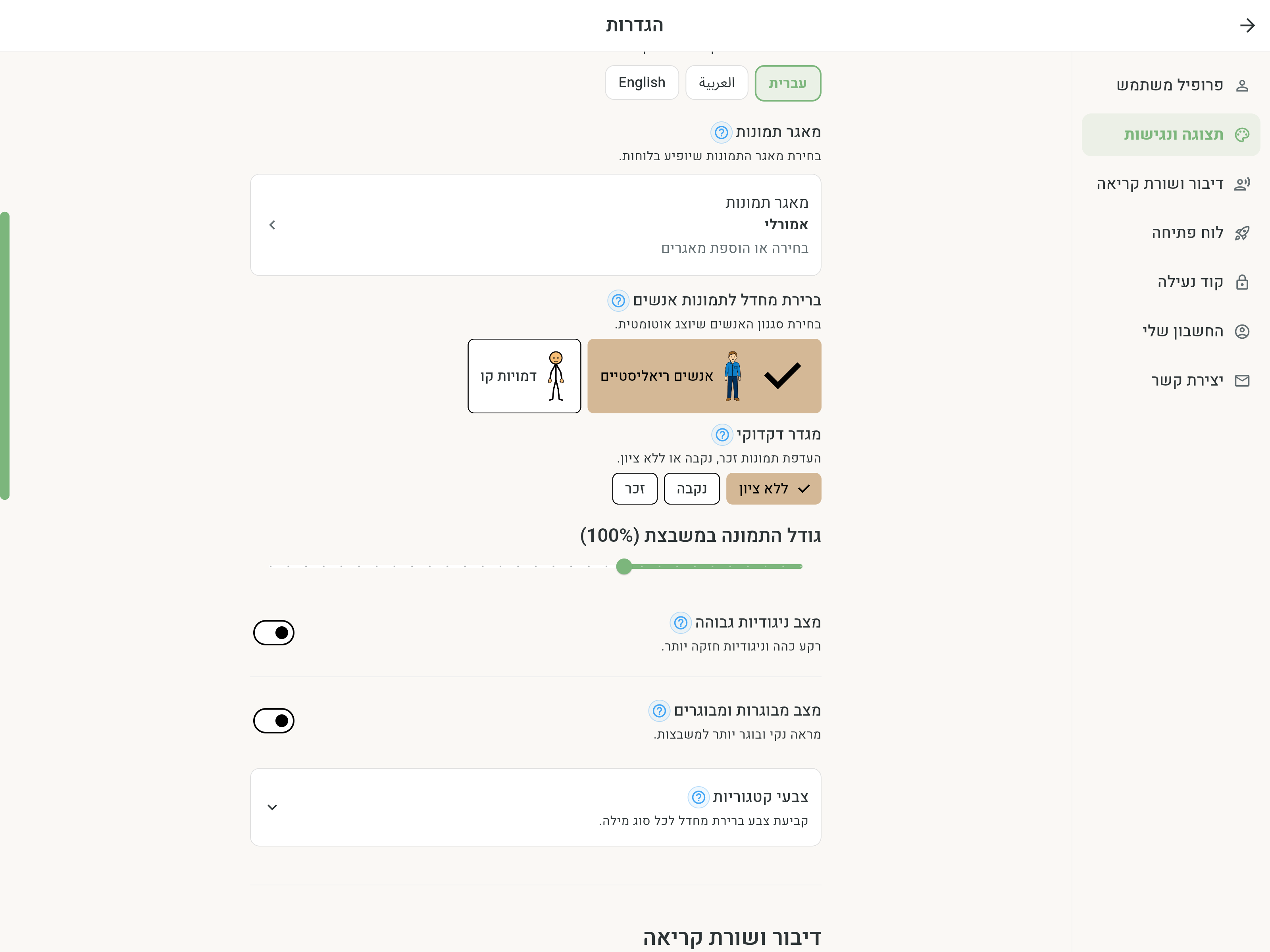
Each style button includes a sample figure: realistic or stick. The realistic example follows the shared gender setting. Tap (?) beside the heading for the full explanation.
With Emorli selected, open Settings → Display and accessibility → Default people images. Choose Realistic people or Stick figures. Realistic people is the default. All three style buttons have equally tall image previews; the adult sample is dimmed while adult mode is off.
Adult images looks like a normal available option. When off, tapping opens a confirmation explaining the broader Adult mode background/border changes. Enable adult mode enables it and opens the preview; opening the dialog alone does not expand the preview. Cancel keeps the current choice. Choosing Realistic people or Stick figures turns adult mode off and restores regular visuals with the chosen style, without another popup or scrolling. Turning off the mode toggle itself restores the previously saved style.
Pack cards show their picture count and default-style support. Emorli supports realistic, adult-image and stick-figure defaults; other packs use their fixed style. Actions align at the bottom regardless of description length. Emorli's count reflects the bundled app release; downloadable counts use the latest available download metadata.
These controls also appear when the app automatically uses Emorli because an older pack selection is not installed, and in the browser version. The pack name in Settings reflects the pack actually displayed. The controls sit below the Image packs row on the main Settings screen.
Realistic images use the same gender setting as the profile. Changing either control updates the same setting. No gender preference prioritizes male images only for image selection; the profile remains unspecified.
This is a preference, not a restriction. If the requested style is unavailable, another image of the same meaning is used. If the requested gender is unavailable, neutral or mixed images are preferred over the other gender. Unclassified images remain available.
Changes apply to existing boards, previews, the reading line, printing, and default images for AI-created boards and newly added words. Changing image style does not change tile labels, vowel marks, or speech. Switching works offline.
The preference belongs to this device. Automatic images in shared boards follow the receiving device's preference. A specific drawing chosen in the image editor stays fixed across preference changes; its reset button returns to automatic selection. Personal images, videos, and deliberately image-free tiles are preserved. These preferences apply only to Emorli.
Accepting license terms
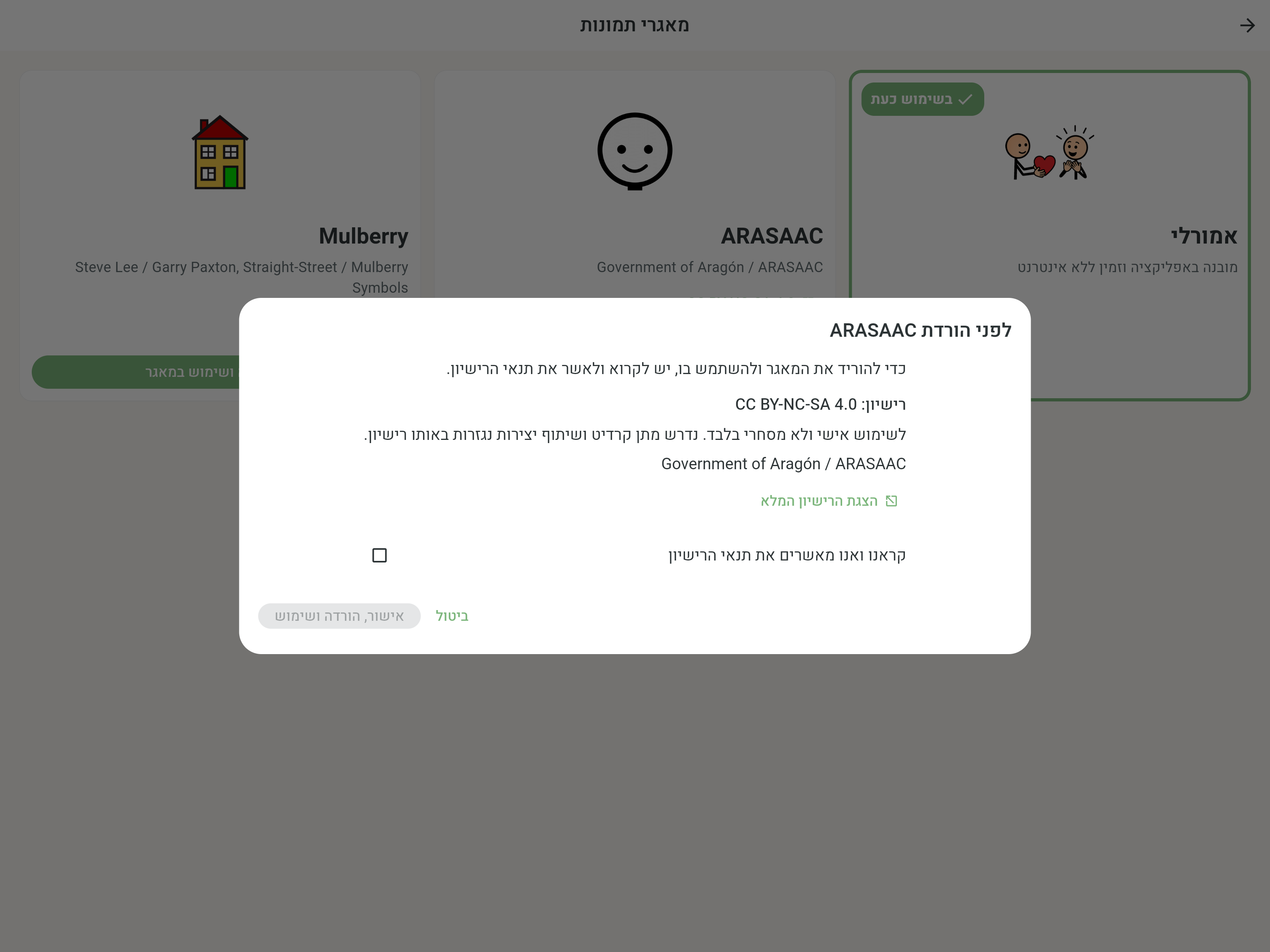
The first time you select ARASAAC or Mulberry, the app shows the license name, usage terms, and attribution. You can also open the full license by selecting its name on the card. Read the terms, check the acceptance box, and select Accept, download and use. Acceptance is stored separately for each pack, so it is not requested every time you switch.
Downloading and selecting
All pack cards share the same height, including when they wrap onto another row. They grow together when larger text or download messages need more space.
If a previously selected pack has not been downloaded to this device, the built-in Emorli images are shown automatically on boards, in previews, and in the tile editor. There is no need to delete boards or choose every tile's image again.
- Select Download and use on an available pack card.
- Accept its license terms if this is your first selection.
- Wait for the download to finish. The progress bar shows its status.
- When complete, the pack is selected and works offline.
The selected card carries the Currently in use badge. Other cards have one main button below the artwork: Use this pack if already available on the device, or Download and use with the download size when known. Progress appears inside the card during download. A confirmation appears after selection, and the screen stays open. Images on boards and in the reading line switch immediately without restarting the app.
All packs follow the same sizing rules. Emorli pictograms are tightly cropped to their content, without unnecessary margins, so they use the image area well. Transparent outer margins are also removed when the ARASAAC pack is prepared, allowing the complete symbol to appear larger without being cut off at the edges. At 100%, an image fills the normal maximum safe height unless the tile's width limits it first. A larger size only zooms within the fixed image area; the label remains at the top and never moves or overlaps the image. Size can be controlled through Accessibility, Board Settings, or Tile Appearance.
If the download information or download is unavailable, the Emorli pack remains usable and a clear error appears. Check your connection and select Retry.
Deleting a download
To free device storage, select Remove from device on the pack card. If that pack was active, the app automatically returns to Emorli. Any available pack can be downloaded again later.
Words without an image
Images retain their original width-to-height ratio, without horizontal or vertical stretching. Portrait and landscape images fit within the tile's image area while preserving their proportions.
ARASAAC includes an image for every word linked to the Emorli catalog. Mulberry is a partial pack, so it does not have an image for every word. When the selected pack lacks a matching image, the tile displays its text and color only, without a missing-image icon. Personal and specially generated images are not replaced when the pack changes.
When the same concept has equivalent images under different identities, the app first tries the selected image. If it is missing from the active pack, it uses an approved equivalent from that same pack. This prevents a pack switch from leaving a tile blank only because the packs use different identities. If no approved equivalent exists, the tile remains text-only.
Adding supported packs
For the pack format and how to propose another pack, open How to add more supported packs to Emorli at the bottom of the screen. It links to the community repository on GitHub.