
The Reading Line
The reading line collects the words tapped on the board and lets you build a full sentence and play it with one tap. Every tap on a word tile in use mode adds it to the line — and when the sentence is ready, a single tap plays it in full.
The line's buttons
Alongside the accumulating words, the line holds these buttons:
- Home / Back — returns to the home screen, or to the previous board after navigating between boards.
- Clear (X) — deletes all the words and starts a new sentence.
- Backspace — deletes the last word. If you've selected a word on the line, the button deletes that word instead of the last one.
- Play (green speaker) — reads the whole sentence in order. Words with a personal recording or custom spoken text sound exactly as they were set.
- Edit — a locked button at the end of the line; unlocking it is explained in Using a board.
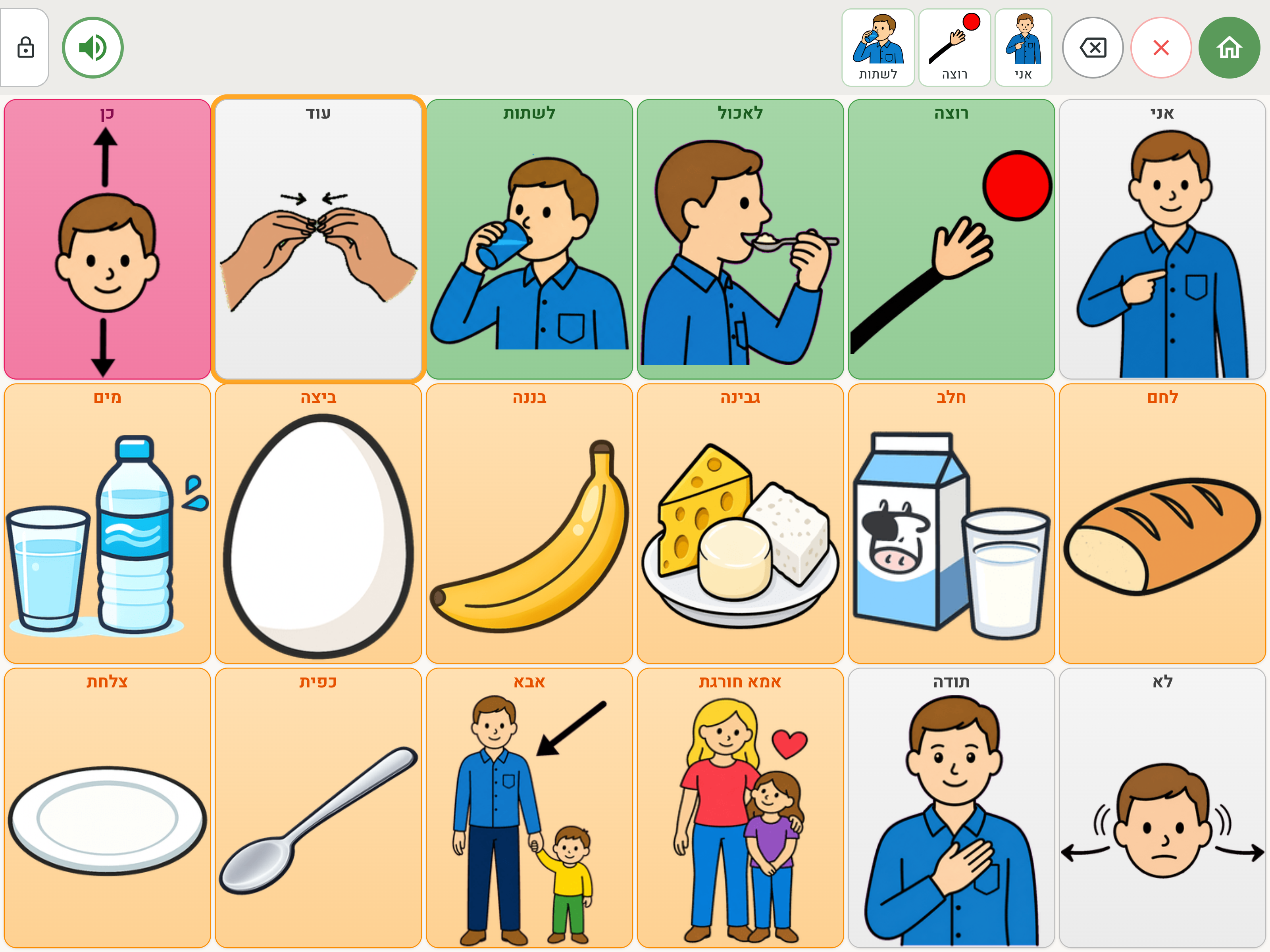
Editing the sentence
You can fix a sentence without deleting all of it: tapping a word on the line selects it, and tapping the same word again deletes it from the sentence. While a word is selected, the delete button deletes it too — an easy way to remove a word from the middle of the sentence.
Position and display
The line's behavior is set per board, in board settings:
- Position — top or bottom of the screen.
- Display — picture and word, word only or picture only.
- Show reading line — you can also turn the line off entirely; a floating home button appears in the corner of the board instead.
The button size of the line is made larger or smaller for the whole app at once, on the Accessibility page.
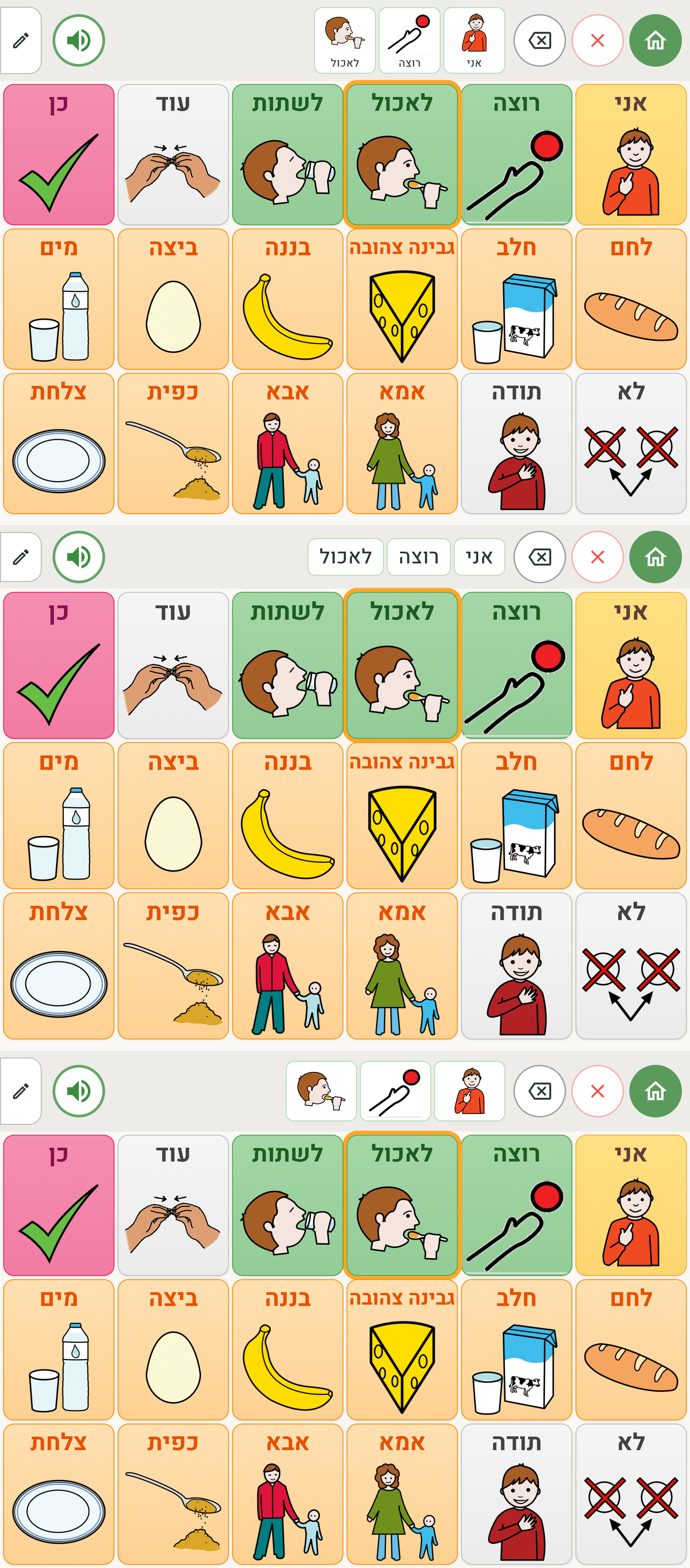
The reading line on the keyboard
On the Hebrew keyboard board the line works at the letter level: each tap on a letter adds it to the word being built, and a blinking cursor appears after a space — a sign that the next letter will start a new word. The delete button deletes one letter per tap, and the play button reads out everything that was typed.