
Quick Start
This page walks you through the whole journey: installing the app, creating an account, making your first board, customizing a tile — and using the board in a real conversation. Every step links to a more detailed page, for anyone who wants to dig deeper.
All the steps on this page are demonstrated in the video guide — you can watch the chapter that matches the step you're on.
1. Install the app
Emorli runs on iPad and iPhone, on Android tablets and phones, and on Windows and Mac computers.
- On iPad and iPhone: download it from the App Store.
- On Android, Windows, and Mac: download it from the downloads page on our website.
Detailed instructions for every device — including what to do if your computer shows a security warning during installation — are on the Download and Install page.
2. Create an account and sign in
You can try the app without an account, but an account is required for creating boards with AI, syncing between devices, and collaboration.
- Open the app and choose Sign up.
- Enter an email address and a password.
- Confirm your address using the verification email we send you.
- Sign in — and that's it.
More details, including password recovery: Signing Up and Signing In.
3. Create your first board
The fastest way is to create with AI:
- On the home screen, unlock editing with a long press on the lock button.
- Tap New board and choose Create with AI.
- Describe what you need in your own words, for example: "A breakfast board for a 5-year-old who loves cornflakes".
- Within moments a finished board appears — with words, pictures, and colors by category.
You can also build a board from scratch or start from a ready-made template — all the ways are explained in Creating a Board.
4. Customize a tile
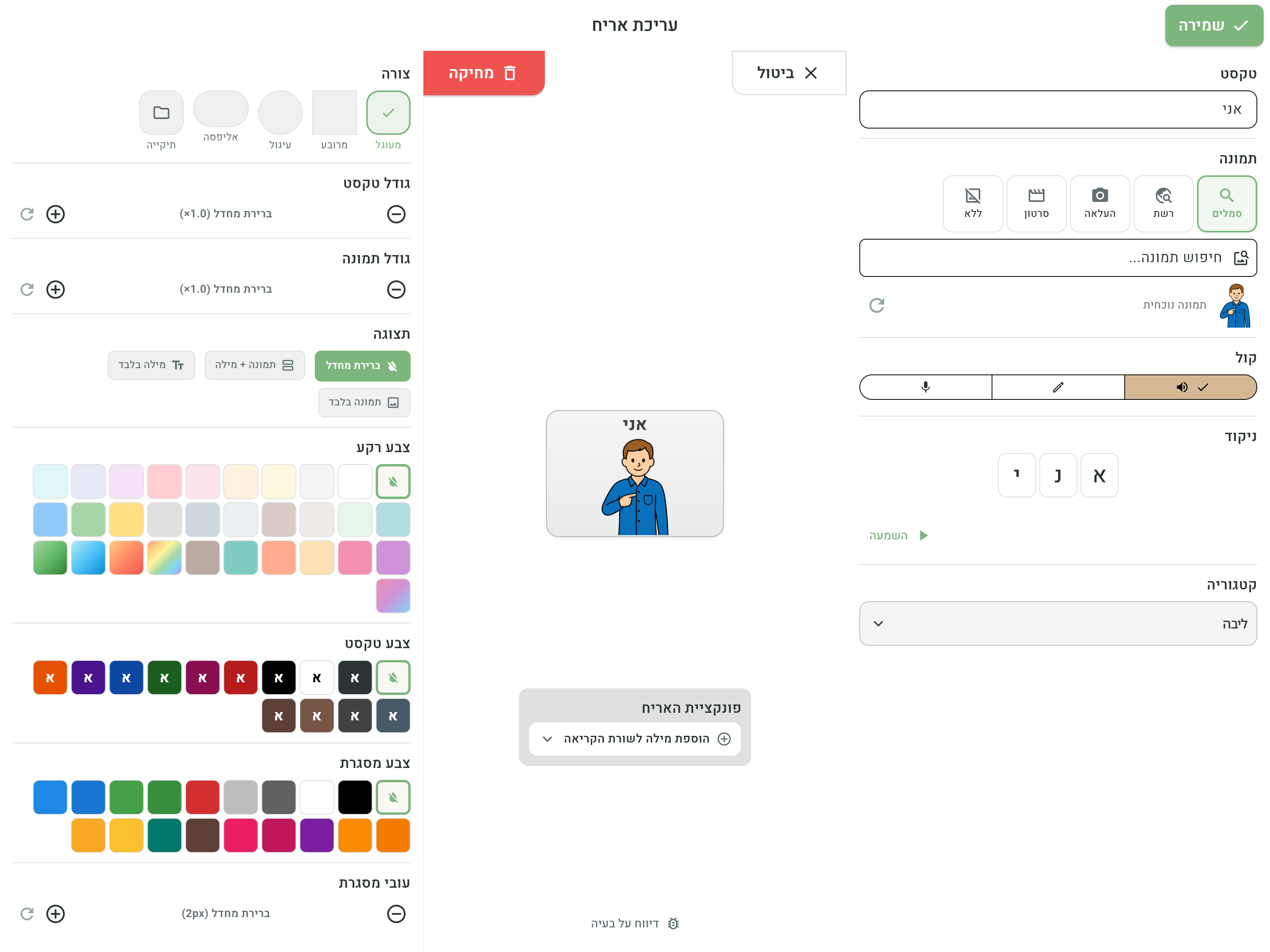
You'll almost always want to fine-tune something: swap a picture, record your own voice, or fix the nikud (Hebrew vowel marks).
- Inside the board, enter edit mode (a long press on the edit button).
- Tap the tile you want to change.
- In the tile editor you can change the word and nikud, the picture, the voice, the appearance — and even what happens when the tile is tapped.
5. Use the board
Now for the most important part — communicating:
- Tapping a tile speaks the word and adds it to the reading line.
- Once a sentence builds up, tap the play button to hear it in full.
- Some tiles can navigate to other boards — for example, a "food" tile that opens a whole board of foods.
Everything that happens in use mode — including the child lock — is explained in Using a Board.
- Share your boards with the care team — see Sharing and Collaboration.
- Sign in on several devices — your boards sync automatically.
- Tailor the app exactly to your needs in Settings and Accessibility.