
Signing Up and Signing In
After installing the app, the next step is an account. This page explains how to create an account, what to do if you forget your password, and how to sign out.
The three languages — עברית, العربية and English — appear under the sign-in card. Tapping one switches the interface language immediately, even without an account. You can change it at any time in Settings.
What does an account give you?
You can try the app without an account, but an account with an active license is required for the main capabilities:
- Creating boards with AI
- Syncing your boards between your devices
- Sharing and collaboration with the care team
Creating an account
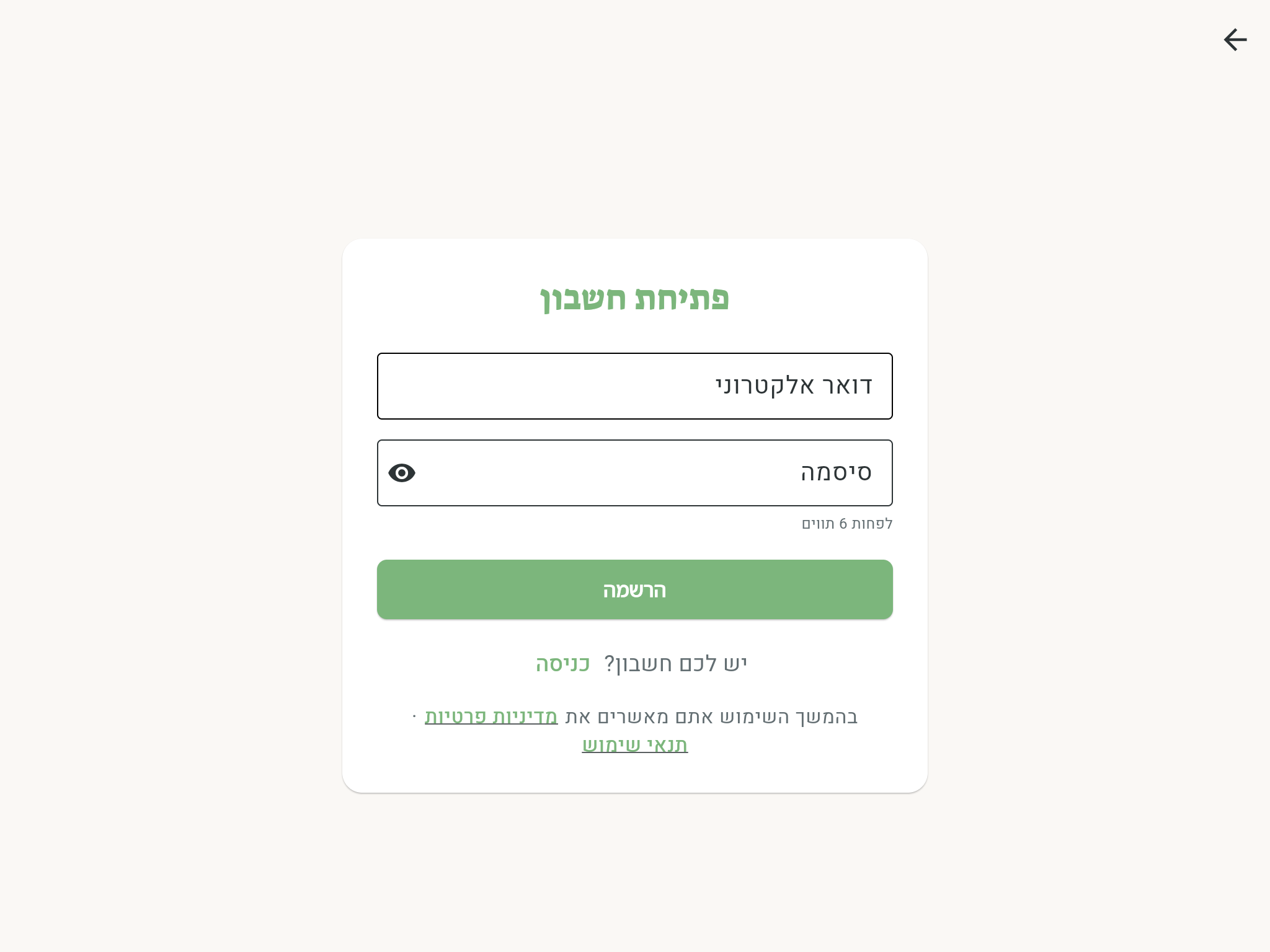
- Open the app. The card has two tabs at the top — Sign in and Sign up. Tap Sign up.
- Enter an Email and a Password (at least 6 characters).
- Tap Sign up.
- A Check your inbox screen appears — we've sent you an email with a verification link. Tap the link to activate your account.
- Return to the app and tap Sign in — sign in with the address and password you chose.
Check your spam folder too. If you try to sign in before confirming your address, the app shows the message "Your email hasn't been verified" with a Resend verification email button — tapping it sends you a new email.
Signing in
On the Sign in screen, enter your email and password and tap Sign in. The app remembers you — there's no need to sign in again every time you open it.
If the address you entered has no account, the message "There's no account with this email address — want to sign up?" appears with a Sign up link. Tapping it moves to the Sign up tab with the email address already filled in.
Note: every device you sign in on takes up a device slot in your license. The full explanation is in License and Devices.
Password recovery
- On the Sign in screen, tap Forgot your password?.
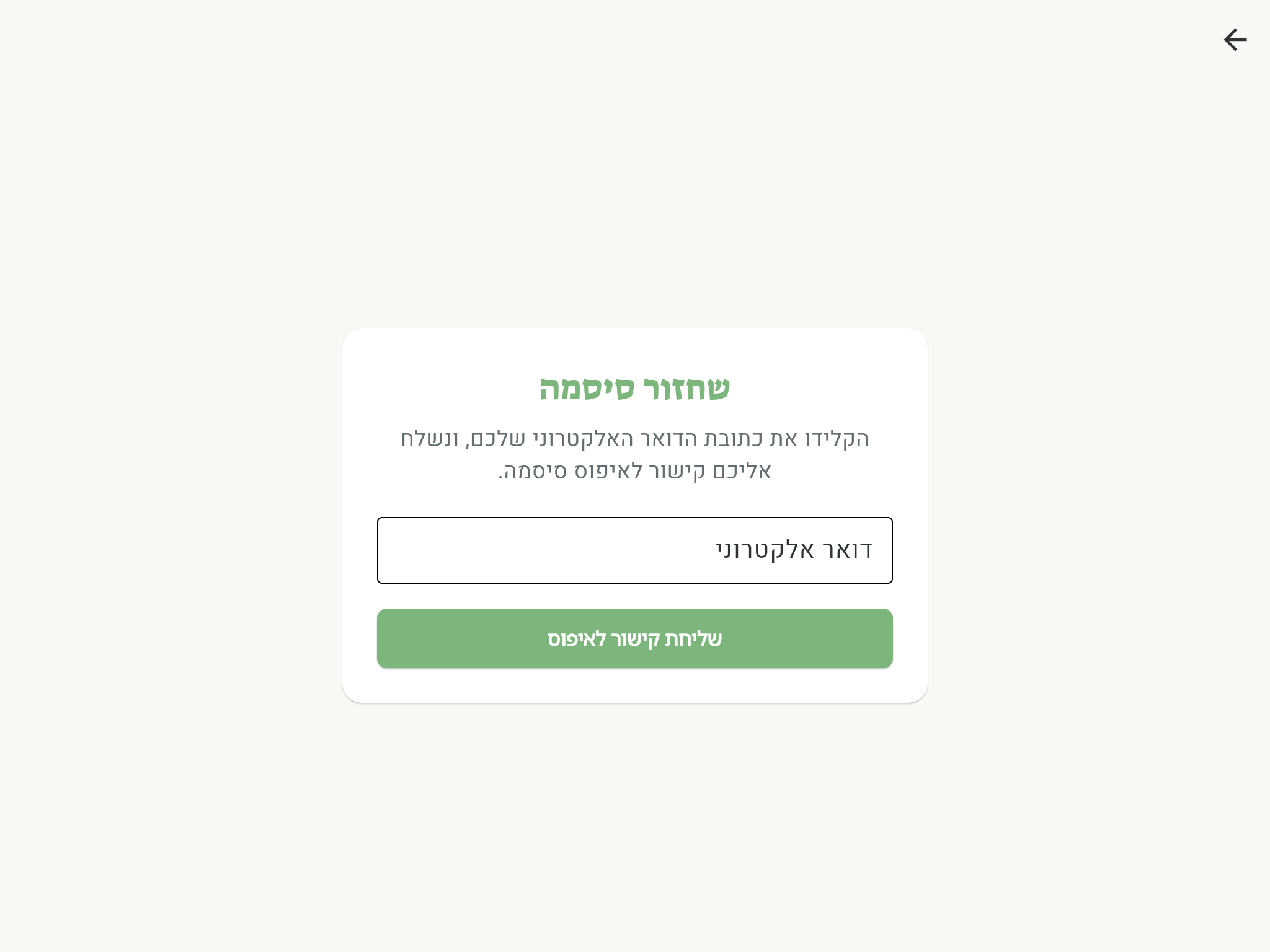
- On the Password recovery screen, type your email address and tap Send reset link.
- If the address exists in the system, a reset link is sent to it. Open the email, tap the link, and choose a new password.
- Return to the app and sign in with the new password.
Signing out
Go to Settings, and in the My account section tap Sign out.
The device keeps occupying its device slot in the license even after signing out. If your goal is to free up room for another device — the right action is unlinking the device, which is explained in License and Devices.
The account dashboard
At dashboard.emorli.com you'll find the account dashboard: account details, your license, and the linked devices. No extra password to remember — tapping Manage account in Settings, in the My account section, opens it in the browser already signed in.