Tiles
A tile is the heart of a communication board: a cell with a word, an image and a voice. Tapping a tile speaks the word and adds it to the reading line — that's how sentences are built. This page explains how to edit a tile, and it's the starting point for the deep-dive pages on each part of editing.
Opening the tile editor
Tiles are edited in the board's edit mode (see Editing a board):
- Editing an existing tile — tap the tile. The tile editor opens with the title “Edit tile”.
- Creating a new tile — tap an empty cell on the board. The same editor opens with the title “New tile”.
When you're done, tap Save (or Add for a new tile) in the top corner. Cancel closes without saving, and Delete removes the tile from the board.
How the editor is laid out
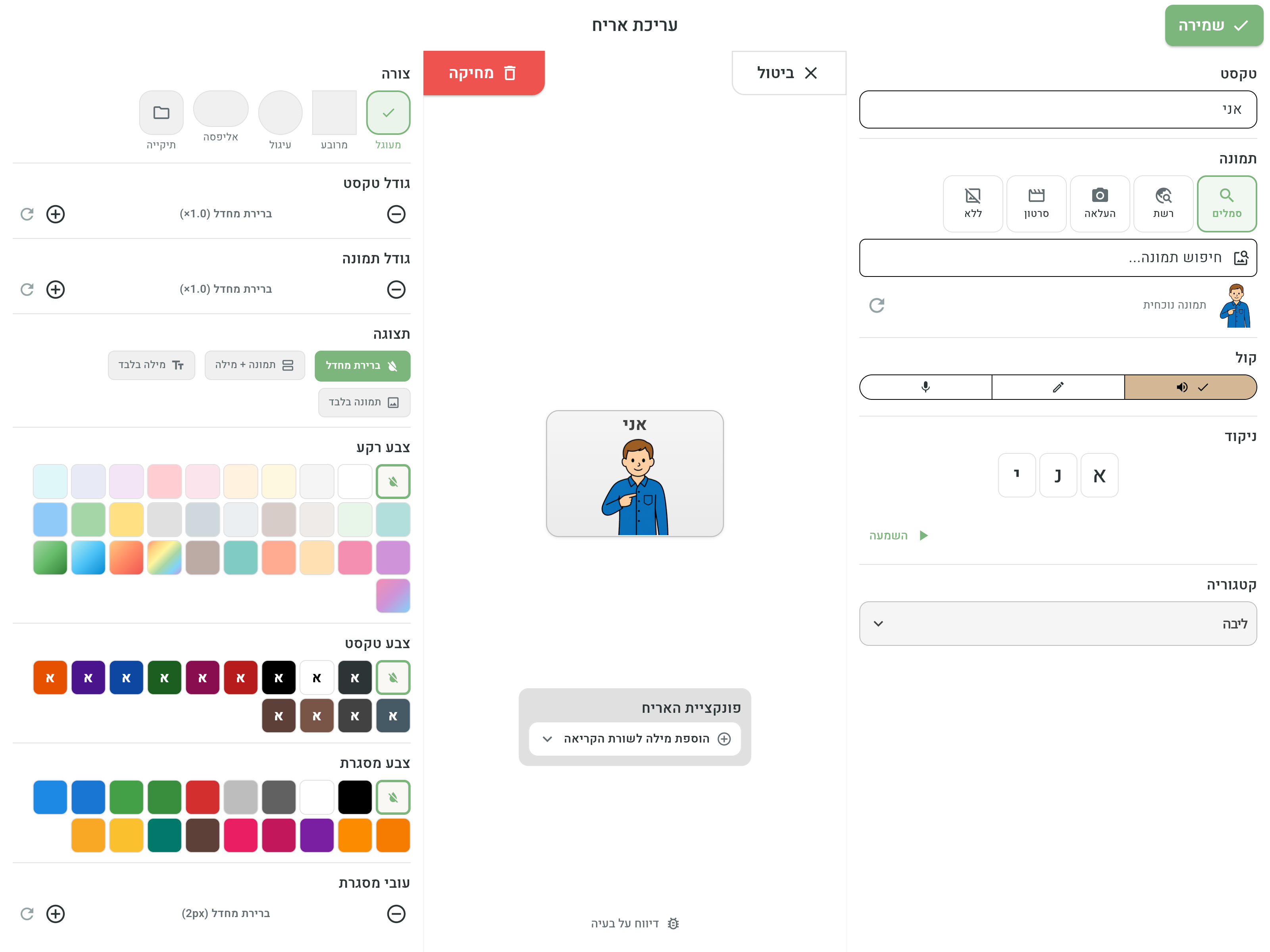
On tablets and computers the editor is divided into three areas:
- One side — content: the word (text), the image, the voice, the nikud and the category.
- Center — live preview: the tile as it will look on the board, updating in real time as you edit. Below it sits the Tile function selector — what happens when the tile is tapped (see Tile actions).
- The other side — appearance: colors, shape, sizes and display (see Tile appearance).
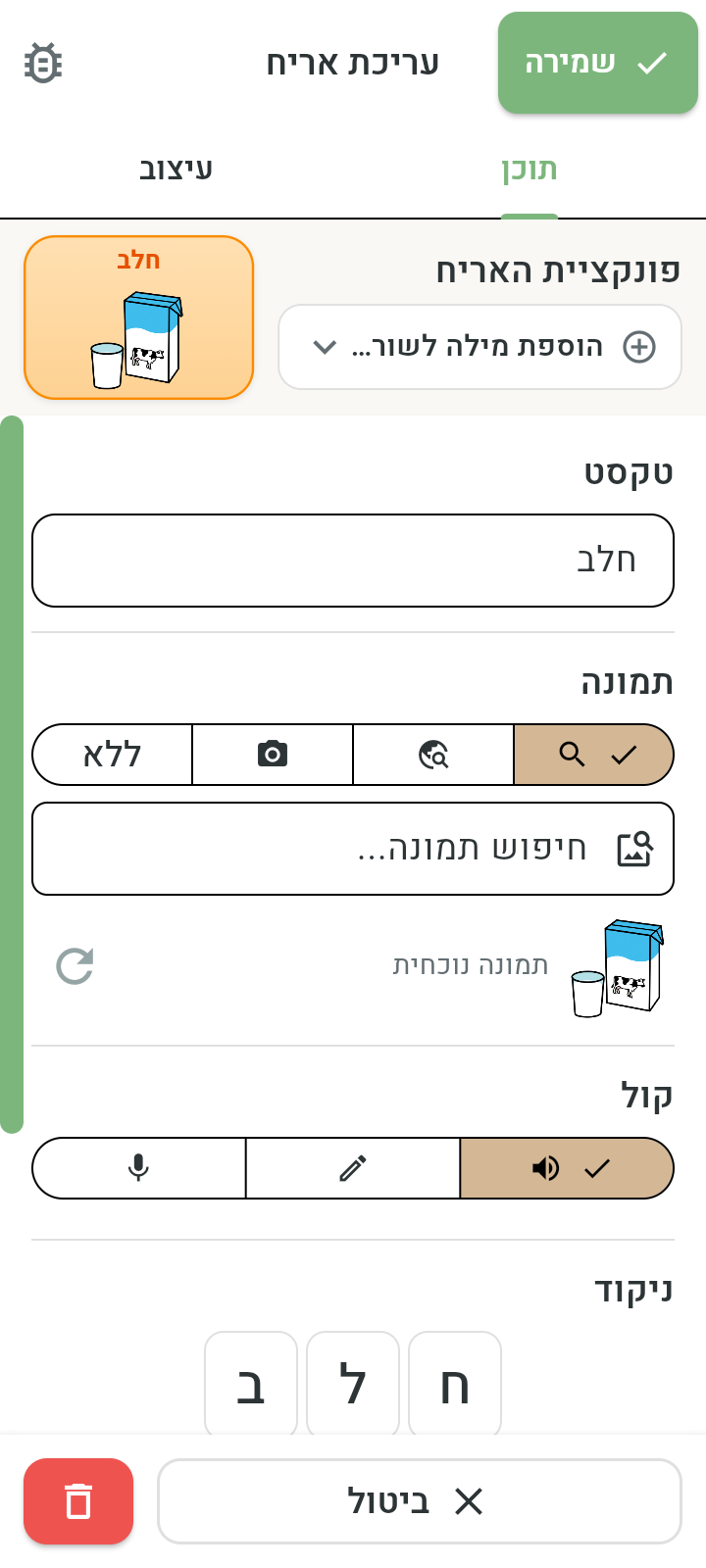
On phones the same editor is arranged in two tabs — Content and Appearance — with a live preview that stays on screen the whole time.
The deep-dive pages
- Text and nikud — typing the word with autocomplete, and nikud (Hebrew vowel marks) so the word sounds right.
- Image — picking an image from the built-in library, searching the web, taking a photo or uploading from the gallery.
- Voice — automatic text-to-speech, custom spoken text, or a recording in your own voice.
- Appearance — colors, shape, border, text and image size and the tile display.
- Tile actions — what happens on tap: adding a word, navigating to another board and more.
Category and colors
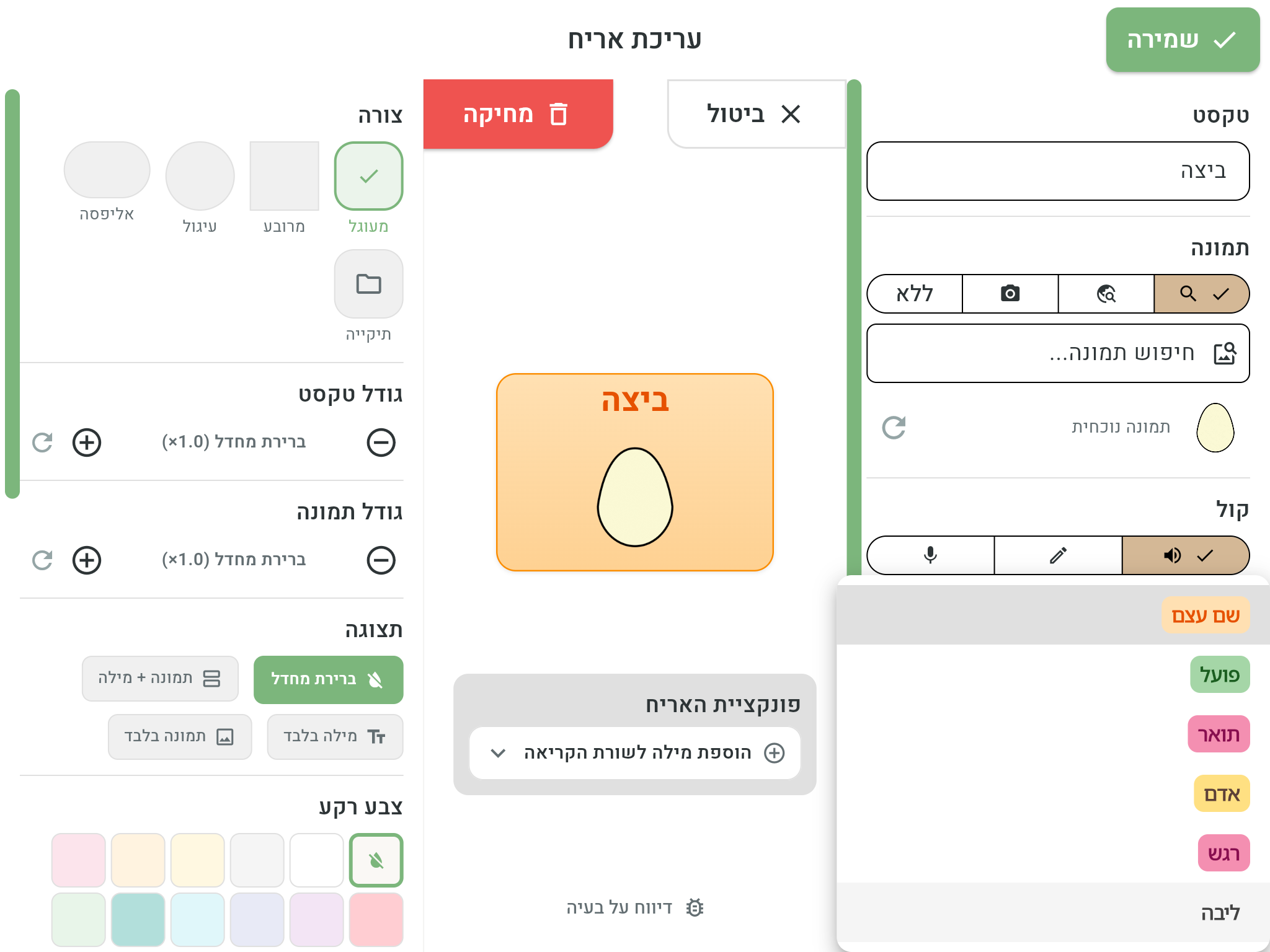
At the bottom of the content side sits the Category field — the word's linguistic category: Noun, Verb, Adjective, Person, Emotion or Core (function words like “I”, “want”, “more”).
The category sets the tile's default colors, following the color-coding system widely used in the AAC world (the Fitzgerald Key): each word type has a fixed color. Why does this matter? When colors are consistent, users find words faster — the eye jumps straight to the “verb area” or the “emotion area” — and sentence structure (who? does what? feels how?) is learned through color. It's usually best to leave the category colors as they are; if you still want a different color for a specific tile, see Tile appearance.
Reporting a problem with a tile
Found a tile with the wrong image or incorrect speech? You can report it to us right from the editor:
- Open the tile for editing and tap Report a problem (on a tablet — at the bottom of the middle column; on a phone — an icon at the top of the screen).
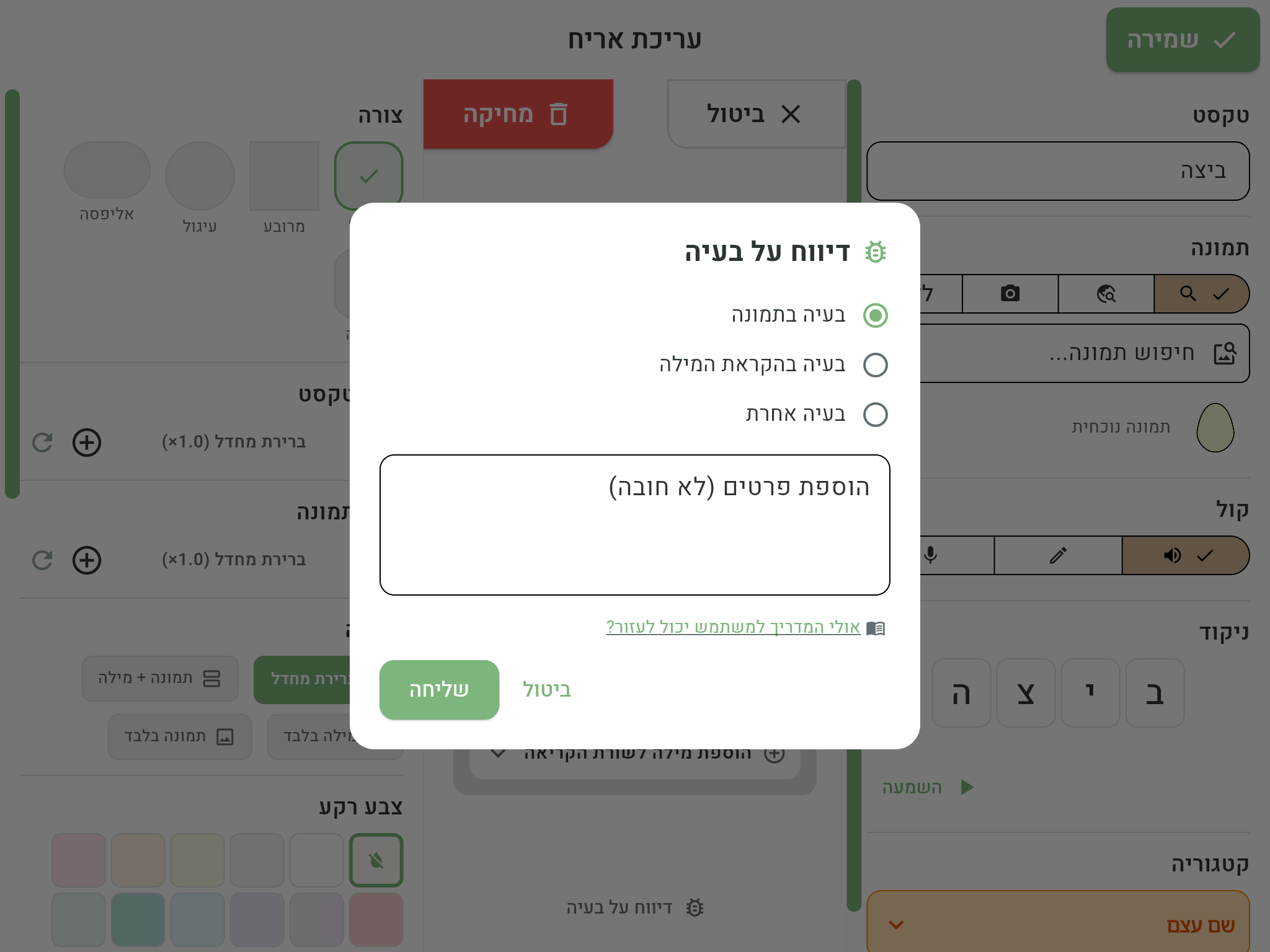
- Choose the type of problem: Problem with the image, Problem with how the word is spoken or Another problem.
- You can add details in the “Add details (optional)” field.
- Tap Send.
The report reaches us and helps improve the app for everyone. Sending a report requires an internet connection.