License and Devices
An Emorli license is linked to your account and lets you use the app on a fixed number of devices. This page explains how it works, how to free up room for a new device — and why unlinking a device and signing out are two different actions.
You can see the license status and the linked devices at any time in the dashboard at dashboard.emorli.com — it opens already signed in when you tap Manage account in Settings.
The dashboard footer includes the Terms of Service, Privacy Policy and contact details: contact@emorli.com and 052-333-6480. You can contact us without signing in.
Device slots
- Every license has a fixed number of device slots.
- Every device you sign in on — an iPad, an Android tablet, a phone or a computer — takes up one slot, and the boards sync between all of them.
- Browsing from the browser does not take up a slot: the dashboard (dashboard.emorli.com) and the remote management portal (app.emorli.com) don't count as devices. More about them in Download and install.
A license through an organization
Some licenses are funded through an organization — for example a kindergarten, a school or a therapy center. Using the app is exactly the same, but the license is managed by the organization:
- If the organization's license has ended, the app shows the Organization license expired screen — contact your organization's administrator to renew access.
- If the organization reduced its number of slots and your device no longer has one, the Organization access revoked screen appears — here too, the organization's management is the address.
The license status screen
When something needs attention, the app stops at a dedicated screen that explains exactly what happened:
- Check your inbox — the email address hasn't been verified yet. It has a Resend verification email button (details in Sign-up and sign-in).
- No active license — the account currently has no license.
- License expired — shown together with the end date.
- No device slots left — all the slots are taken, and the screen shows how many slots are in use plus the list Your active devices. To add the current device, free up a slot on one of the other devices (explained further down this page).
All of these screens have a Manage account button that opens the dashboard, and a Check again button — after you've dealt with the issue (say, freed up a slot on another device), tapping it checks again and continues straight in.
Unlinking a device vs. signing out
This is the most important difference on this page:
- Signing out only disconnects you from the account on the current device. The device keeps holding its device slot on the license, and the next time you sign in it returns to that same slot. This is the right action when you want to sign in with a different account or just disconnect temporarily.
- Unlinking a device signs you out and also frees up the slot on the license — so another device can take its place. This is the right action when you're replacing a device, retiring an old one or moving the license to another family member's device.
How to unlink a device you have with you
- On the device you want to unlink, open Settings and scroll to the Danger zone section.
- Tap Unlink this device.
- A confirmation dialog appears: “This will sign you out on this device and free up its license slot.” Confirm by tapping Unlink device.
- The message Device unlinked successfully appears, and the slot is free for another device.
This action requires an internet connection. The boards created on the device are not deleted — they stay saved on it.
How to unlink a device you don't have with you
A device that was lost, broke, or simply isn't within reach — you unlink from the dashboard:
- Open dashboard.emorli.com (or tap Manage account in Settings).
- On the My profile page, in the My devices section, tap Free up slot next to the device.
- The dashboard asks whether you have access to the device: if you do — it directs you to unlink from within the app on the device itself (the way described above). If you don't — the slot can be released remotely, but only after the device has been inactive for at least 7 days. The dashboard shows the date from which the release becomes possible.
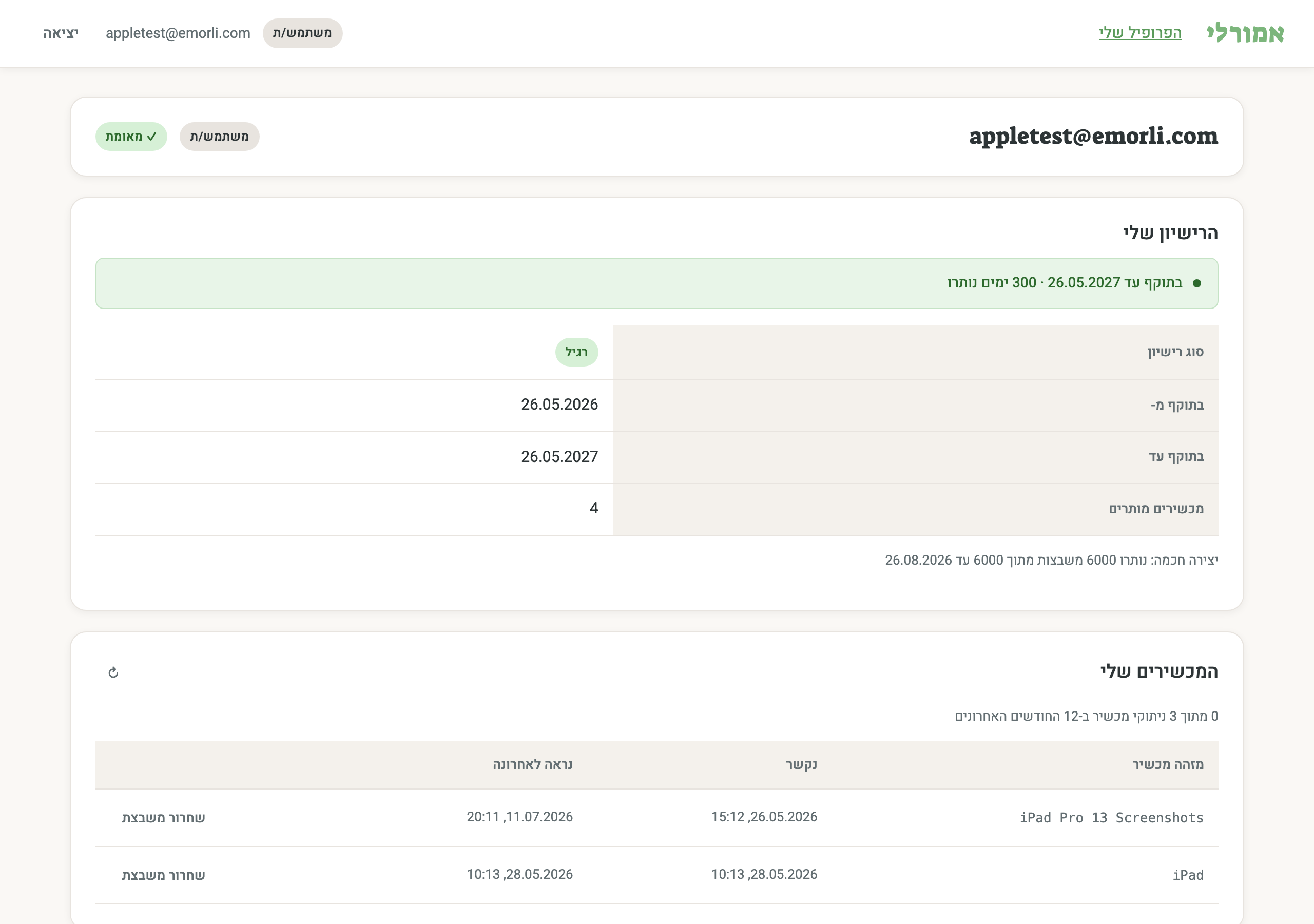
To prevent misuse, there's an allowance of up to 3 device unlinks in the past 12 months (in total, from the app and the dashboard combined). The dashboard shows how many unlinks have already been used, and the confirmation dialog in the app shows it too. Once the allowance is used up, the message “You've reached this year's maximum device unlinks” appears — in that case, wait, or contact us for support.
Using without internet
Emorli is designed to work without a connection too: boards, speech and editing all work fully offline (creating with AI is the exception — it needs internet). When there is a connection, the app occasionally verifies in the background that the license is valid.
If more than 7 days pass without any connection, the app shows the Internet connection required screen and asks you to connect once so it can verify the account. Connect to a network, tap Check again — and carry on as usual. No permanent connection is needed, just once a week at most.
If something on the license screens isn't working out, check the FAQ and troubleshooting — or write to us.