
The Tile Voice
Tapping a tile makes a sound — and that's the heart of the app. In the tile editor (how to get there is explained in Tiles), in the Content tab, you'll find the Voice section with three modes: text-to-speech, custom text and recording.
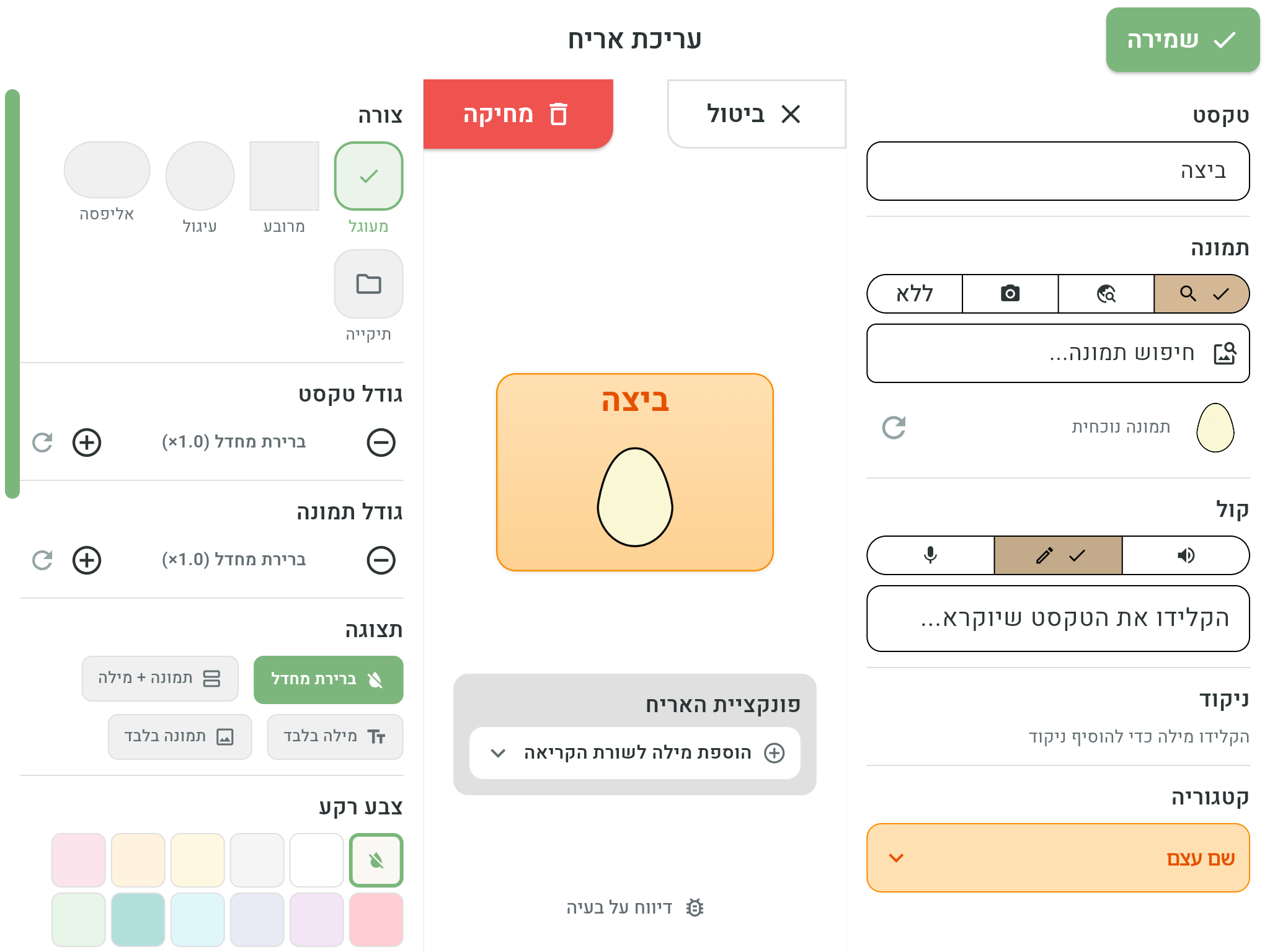
Text-to-speech
This is the default mode: the word written on the tile is read aloud by the app's text-to-speech voice. There's nothing to set up — every new tile speaks right away.
Two ways to improve the speech:
- Nikud — adding nikud (Hebrew vowel marks) to a Hebrew word greatly improves the pronunciation, especially for ambiguous words. See Text and nikud.
- Speech rate — the speaking pace for the whole app is adjusted in Settings.
Custom text
In this mode the tile shows one text — but speaks another. In the Type the text to be spoken... field, enter what will actually be heard.
Common uses:
- A tile that shows “I” but speaks a full sentence: “I want to say something”.
- A “hello” tile that speaks “Good morning, everyone!”.
- A word written in short form on the tile but spoken in full.
You can add nikud to the custom text too, to fine-tune the pronunciation of Hebrew text.
Recording
No voice is warmer than a familiar one. In recording mode you record yourselves — parents, siblings, or the users themselves:
- Tap Recording and speak to the device. While recording, a live sound wave is shown, so you can see the microphone is picking you up.
- Tap Stop to finish.
- You can play the recording back (the play button), delete it (the “Remove recording” button) — and record again until it comes out perfect.
In addition, every recording ever made is kept in the Previous recordings collection — so you can attach an existing recording to a tile without recording again, for example when the same word appears on several boards.
Your recordings sync between your devices, so the recorded voice sounds the same on the tablet, the phone and the computer.
What actually plays on tap?
When a tile is tapped, the app decides what to play by a fixed order of priority:
- Recording — if the tile has a recording, that's what plays.
- Custom text — if there's no recording but custom text was set, it's read aloud by the text-to-speech voice (with its nikud, if set).
- The word itself — otherwise the word written on the tile is read aloud (with its nikud, if set).
If a recording file is unavailable for any reason, the app doesn't go silent — it reads the word aloud with the text-to-speech voice, so tapping a tile always makes a sound.