
Sharing and Collaboration
Emorli lets speech-language pathologists, teachers, and any other professional create and edit boards for their patients — and the boards arrive directly on the patients' devices, without sitting at the same screen.
Sharing is entirely based on email addresses: the receiving side adds the professional's address — and that's it. There are no codes and no links to share, and only people who were explicitly given permission can access the boards.
How it works
The direction of the permission matters: the receiving side (the family or the user) is the one who grants access. The professional can't "add" patients on their own — the family adds the professional's email address in the settings, and from that moment the professional sees the patient in their list and can send boards.
Both sides need an Emorli account — see Signing Up and Signing In.
Granting permission to a professional
This step happens on the patient's device:
- Open Settings (the Settings button on the home screen, when unlocked).
- Go to the Remote control section.
- Enter the professional's email address and confirm.
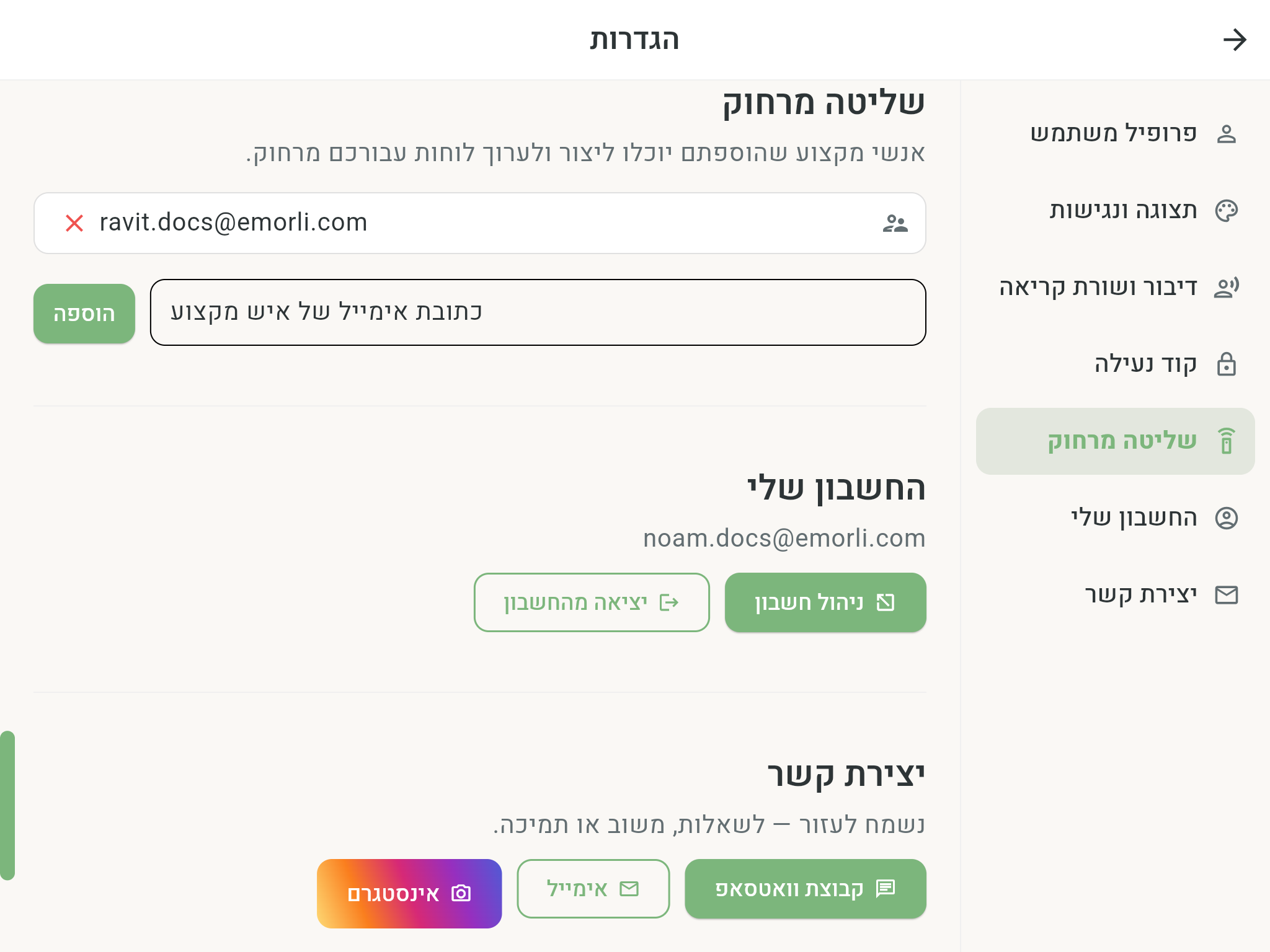
The address must belong to an existing Emorli account. If no account is registered with that address, the message "No registered user with this address" appears — ask the professional to create an account first.
To remove a permission, tap the remove button next to the address in the list. Note: removing a permission also removes the boards received from that professional from the device.
The professional's side: the patients screen
As soon as someone grants you permission, a Patients button appears on your home screen. The screen shows everyone who has granted you permission, and tapping a patient opens their workspace:
- You see all the boards you manage for that patient.
- You can create a new board — including creating with AI — edit and delete, and every change is sent directly to the patient's device.
- Use Add in the workspace header for a board or folder. Tap a board for one menu containing edit, folder placement, border and delete. Drag a board onto a folder to move it inside; drag a folder to reorder it. Folder cards show previews and unfold inline without hiding other boards; Add boards supports multi-selection. See the home screen for details. Recipients can view and use this organization, but cannot edit it.
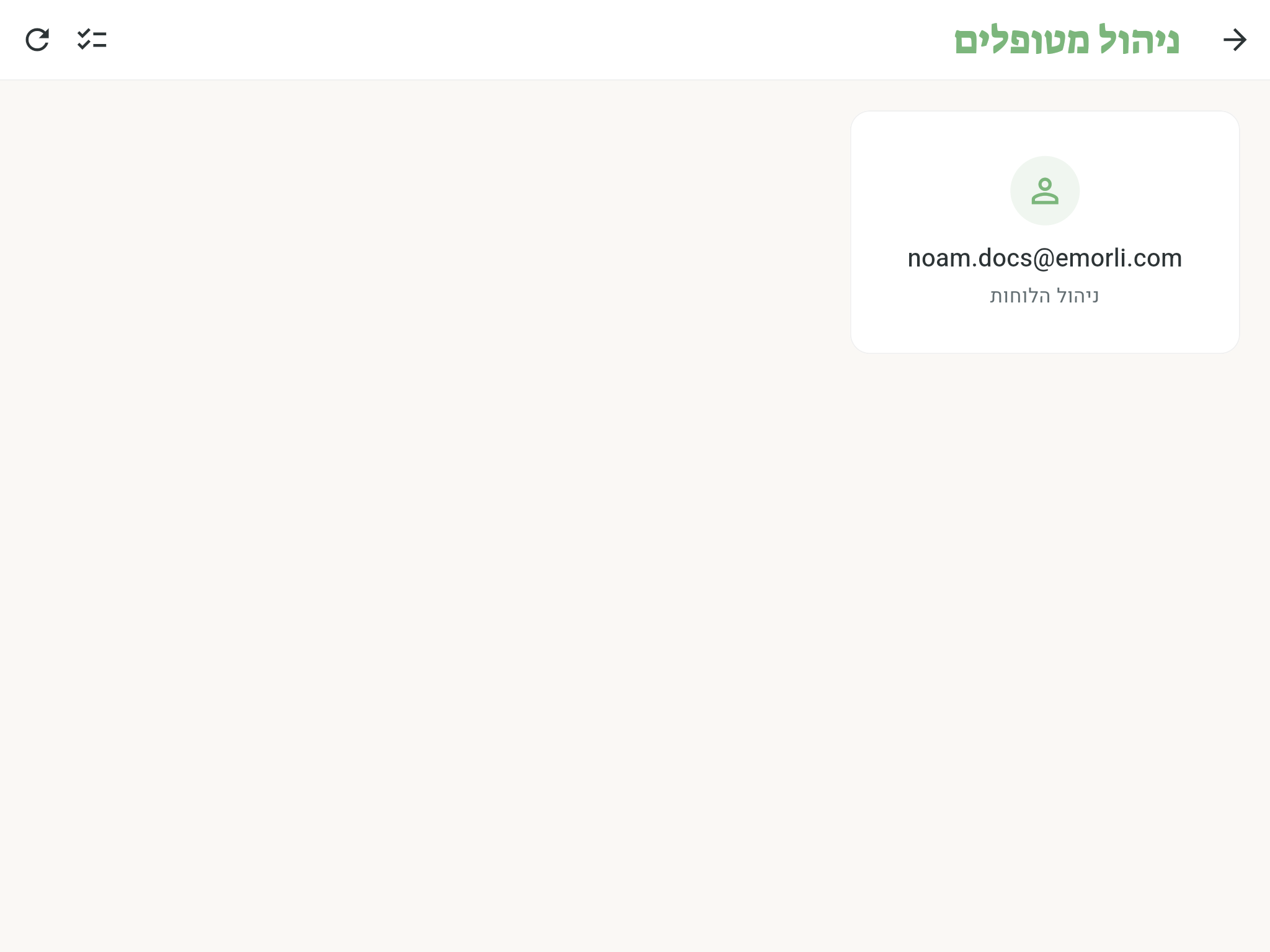
The same workspace is also available from a computer, in the web portal at app.emorli.com — convenient for professionals who work with several patients. You can also reach it from Settings, in the My account section.
Sending boards to patients
There are four ways to send existing boards of yours to patients:
- Multi-select on the home screen — enter selection mode on the home screen, mark several boards, and tap Send to patients.
- The board menu — a long press on a board on the home screen opens a menu with Send to patients.
- From the patients screen — in Select patients mode, mark several patients together and tap Add boards.
- From inside the workspace — when creating a board for a patient, choose Copy from my boards.
Every send creates an independent copy
The board that's sent is a separate copy on the recipient's device: changes you make later to your original board won't be reflected for the patients. To keep updating a patient's board over time, edit the copy through the workspace — changes there do reach the device directly.
A warning about navigation to a board that wasn't sent
If one of the sent boards has a tile that navigates to a board that wasn't included in the send, a warning appears ("Heads up: navigation that won't work") with a list of the tiles — for the recipients, that navigation won't lead anywhere. You can send the target board too, or edit the tile in the workspace.
What the recipients see
The received boards appear at the top of the home screen, in a separate category for each sender. They're available for viewing and use only — they can't be edited directly, so the professional work stays in the hands of whoever sent them.
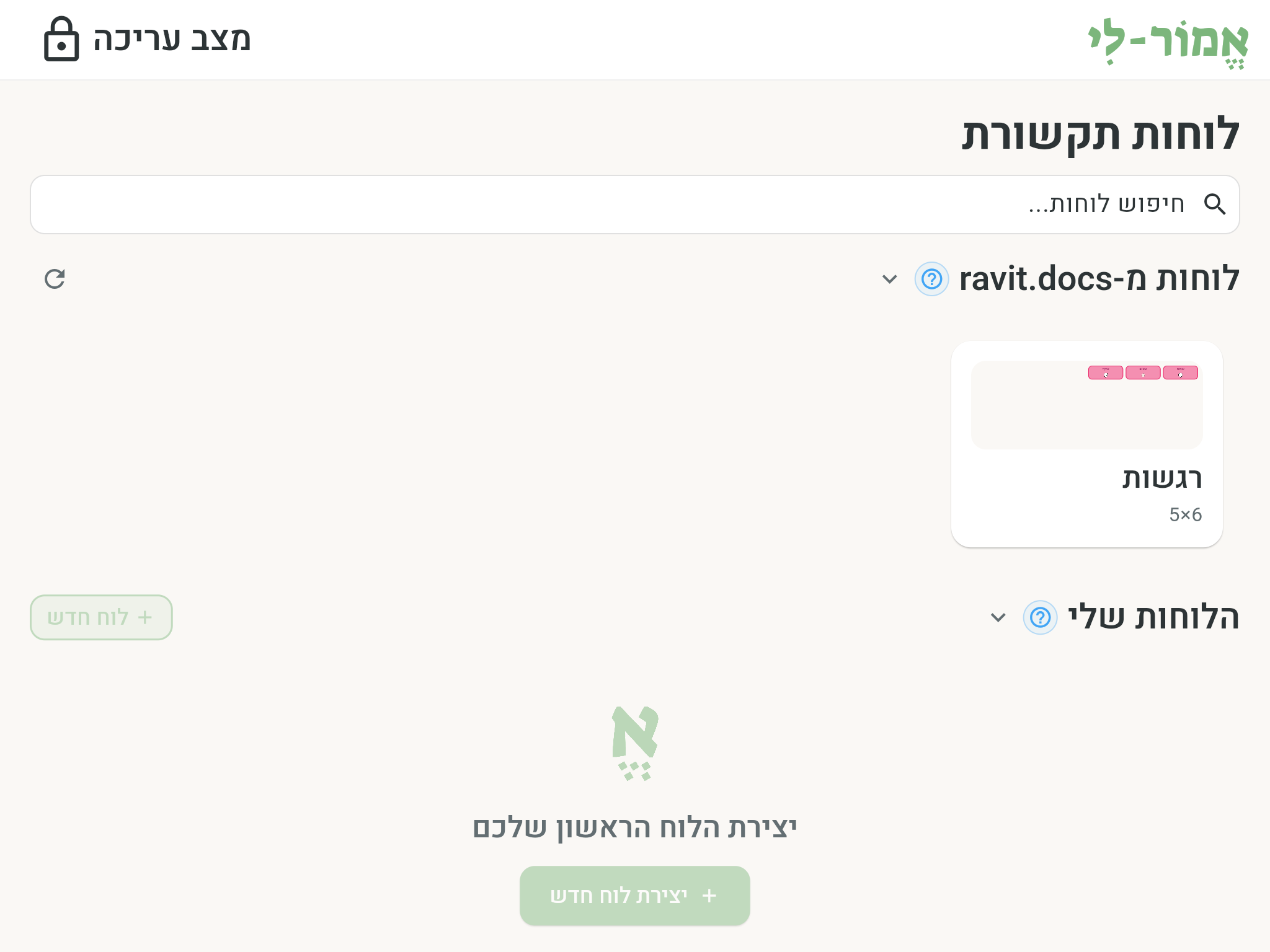
Still want a version of your own? In edit mode, tap the board and choose Duplicate to my boards to create an independent copy you can edit freely. The copy no longer receives updates from the sender.