
Settings
You reach the settings screen from the Settings button on the home screen (available when unlocked). The settings are divided into groups, and a bar at the side of the screen lets you jump straight to the group you want; on phones in portrait, the bar is replaced by a menu that opens from a button at the top of the screen. This page reviews all the groups briefly.
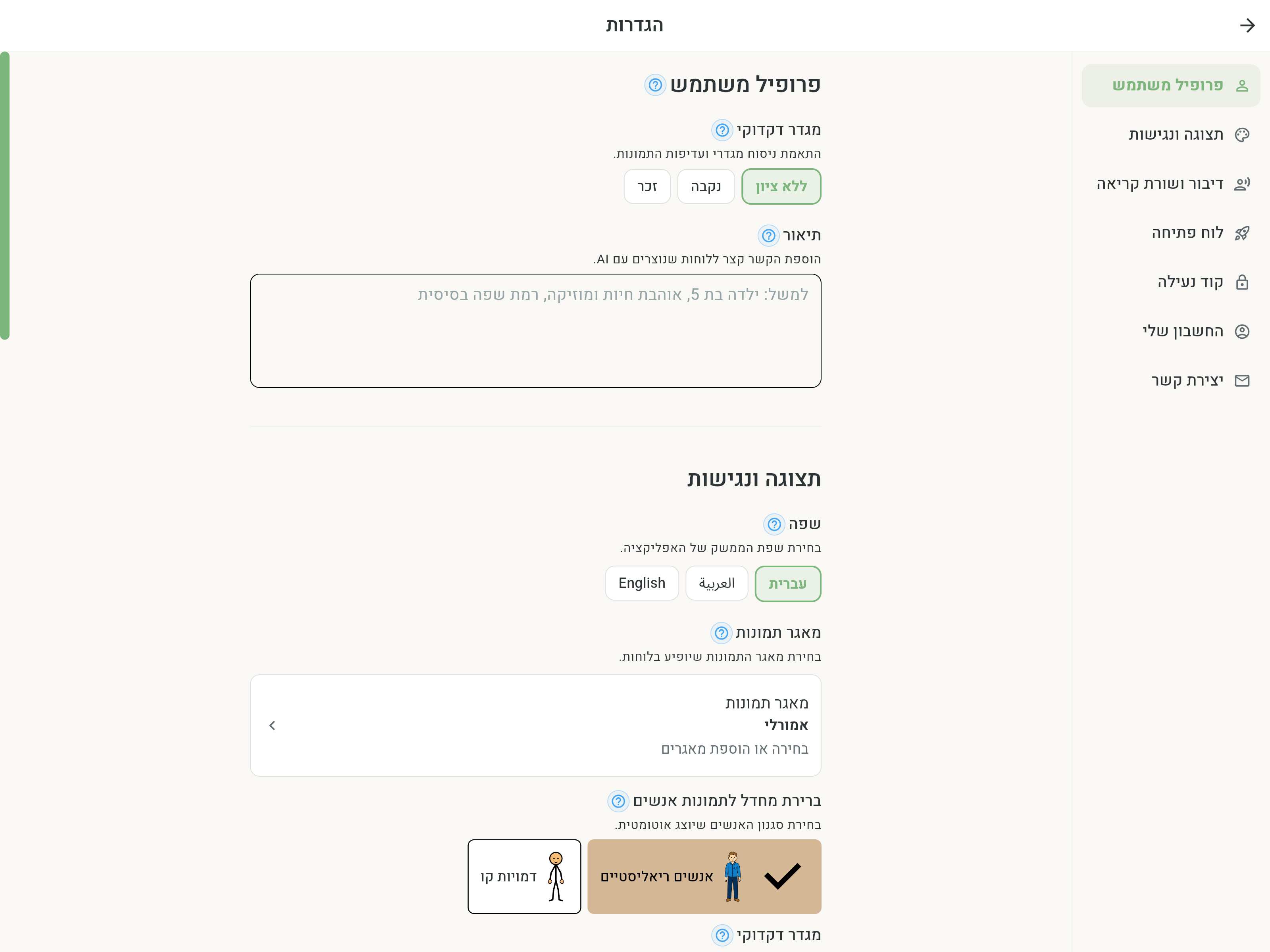
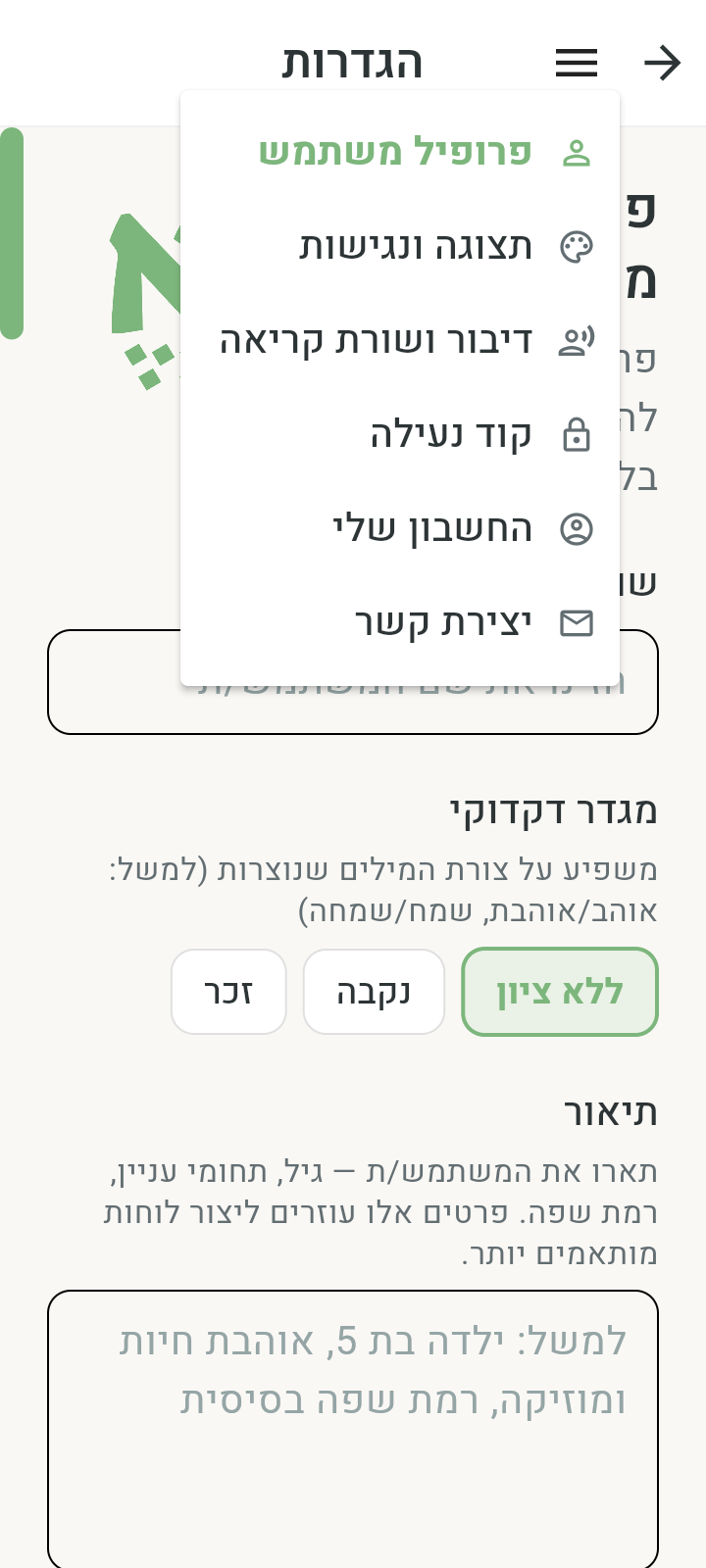
Most settings have a (?) immediately beside their title, grouped with the text rather than at the opposite edge. A brief one-line summary appears below, with clear space between settings. Tap (?) to read the full explanation in the same floating text bubble used elsewhere in the app; another touch dismisses it.
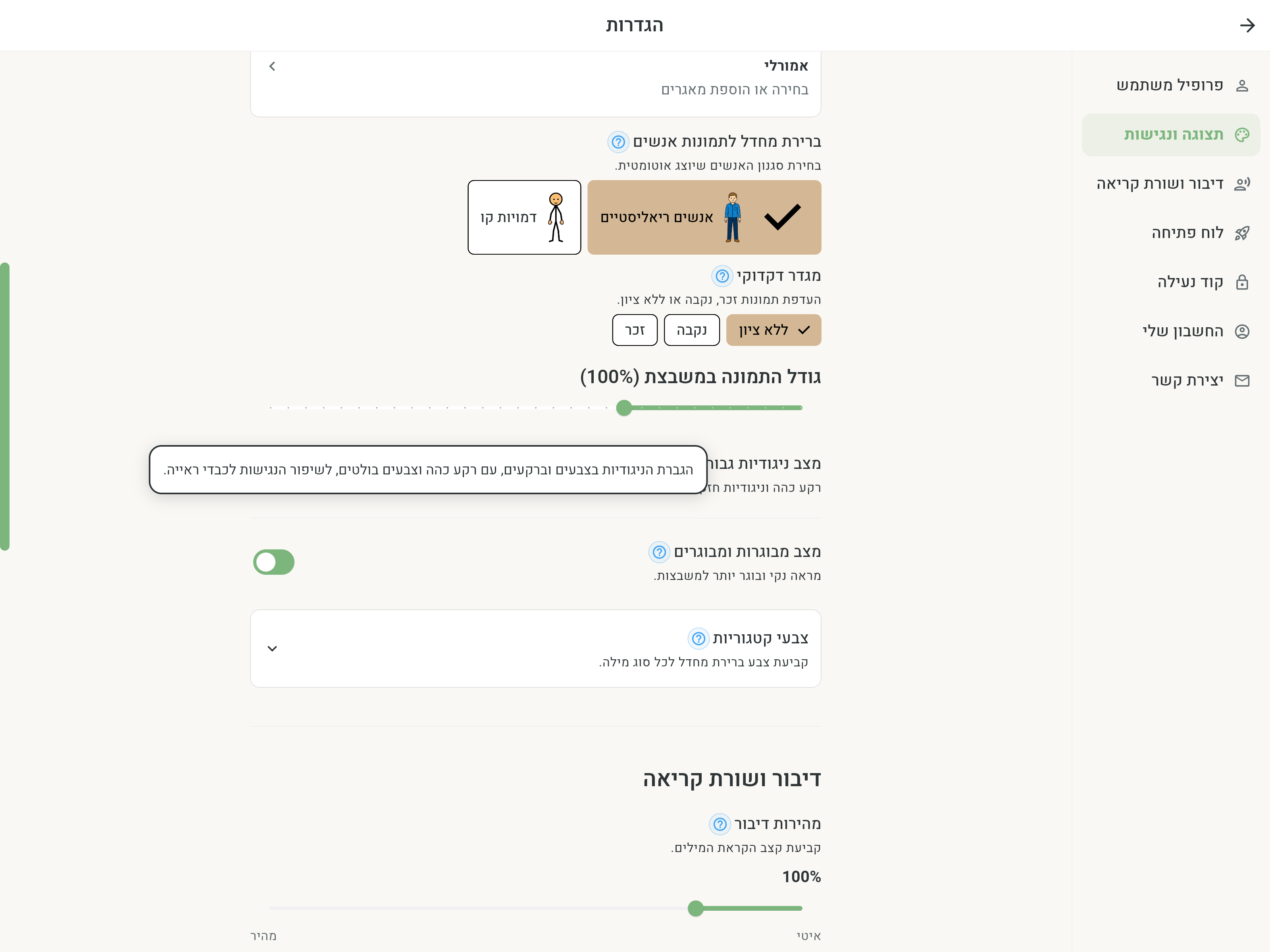
Group headings are larger than individual setting headings. All sliders share the same structure: a title and short explanation, a separate current-value row, Reset to default, the slider and range labels. Reset remains visible but disabled at the default. Image size within tile includes a short explanation and (?) help, like Space between tiles.
Display and accessibility
All visual adjustments: image source, image size within the tile, high-contrast mode, adult mode and category colors. Emorli is always available offline. On Image packs, supported free packs for personal use can be downloaded, their size viewed, and downloads deleted. This group is explained in depth on the Accessibility and personalization page.
This is also where you choose the Language — the app's interface language (עברית, English or العربية). Existing boards are not affected when you switch.
Space between tiles sets a wide gap or no gap on all boards. A live preview shows the change while you move the slider; your preference saves on this device when you release it. See Accessibility and personalization for details.
Image size within tile and Space between tiles appear one after another. Live preview starts collapsed and opens automatically when you touch a visual setting. Tap its heading to show or hide it at any time. The panel floats over Settings without moving the controls, reflecting image pack, people style, gender, image size, spacing, contrast, adult mode and category colors.
Choosing Language or Image pack does not automatically open the preview. If already open, it continues to reflect your selection.
Speech and reading line
- Speech rate — the speaking pace when tapping a tile and when playing the reading line. The default is shown as 100%, and it can be adjusted from 50% to 300%.
- Reading line button size — the size of the play, delete and clear buttons.
- Prevent consecutive duplicates — when on, tapping the same word again won't add it to the reading line a second time.
User profile
This group follows Speech and reading line and contains details about the person using the boards:
- Grammatical gender — affects generated wording and image gender preference.
- Description — age, interests and language level help creating boards with AI tailor the content.
Opening board
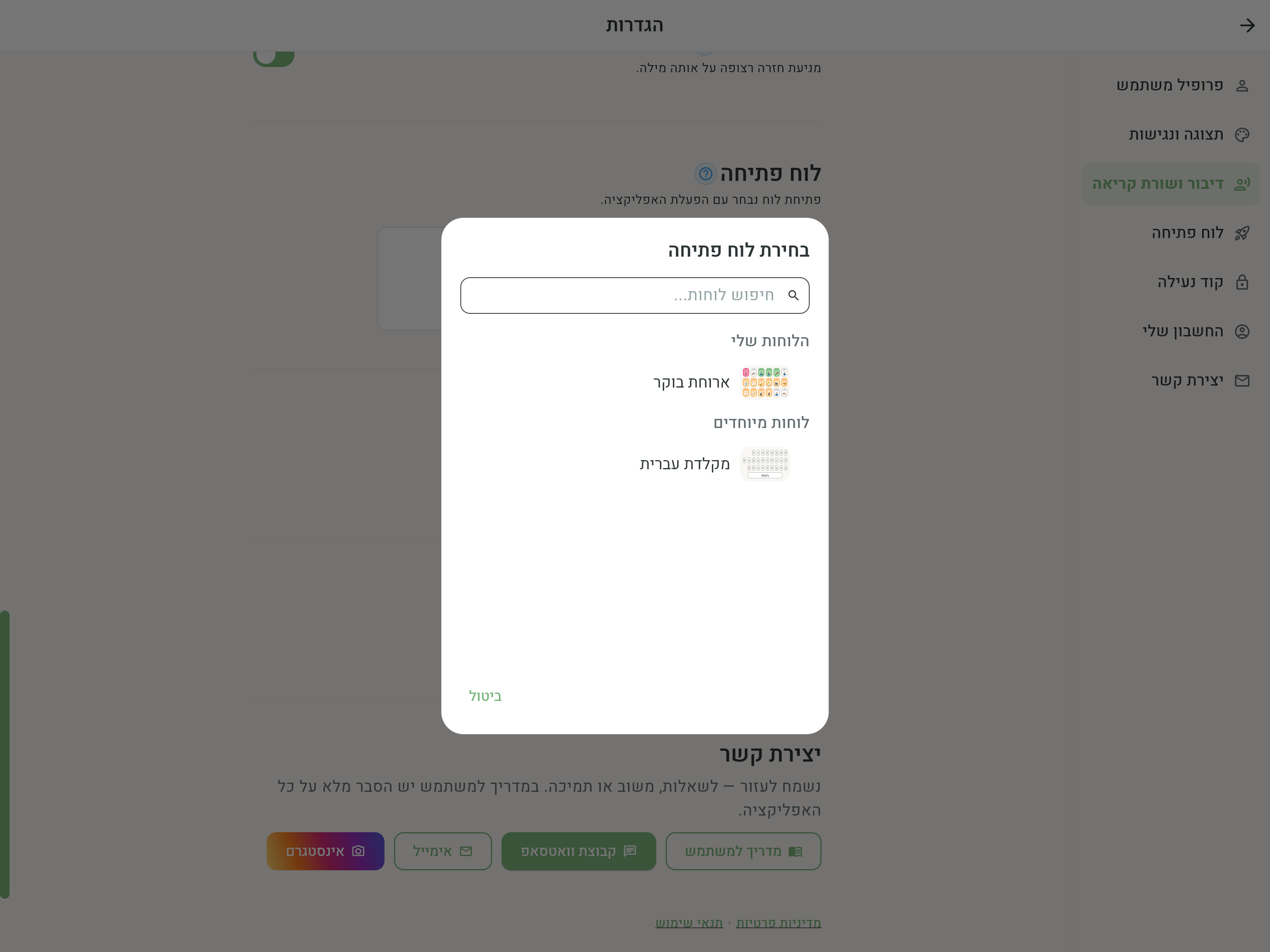
What opens when the app starts — choose between two cards:
- Home screen — the default: the app opens on the home screen with all boards.
- A specific board — tapping the card opens the Choose opening board dialog: search boards by name, with the list grouped into categories like the home screen ("My boards", received boards, "Emorli boards" and "Special boards"). Once chosen, the card shows a preview of the board, and the app opens straight into it on every start.
To return to opening on the home screen, tap the Home screen card. An opening board can also be set directly from the home screen (in the board menu in edit mode) or from board settings.
Lock code
A 4-digit code that keeps board users from leaving use mode: once the code is set, any attempt to open edit mode or the home screen will ask for it. You can show the code, change it or remove it here.
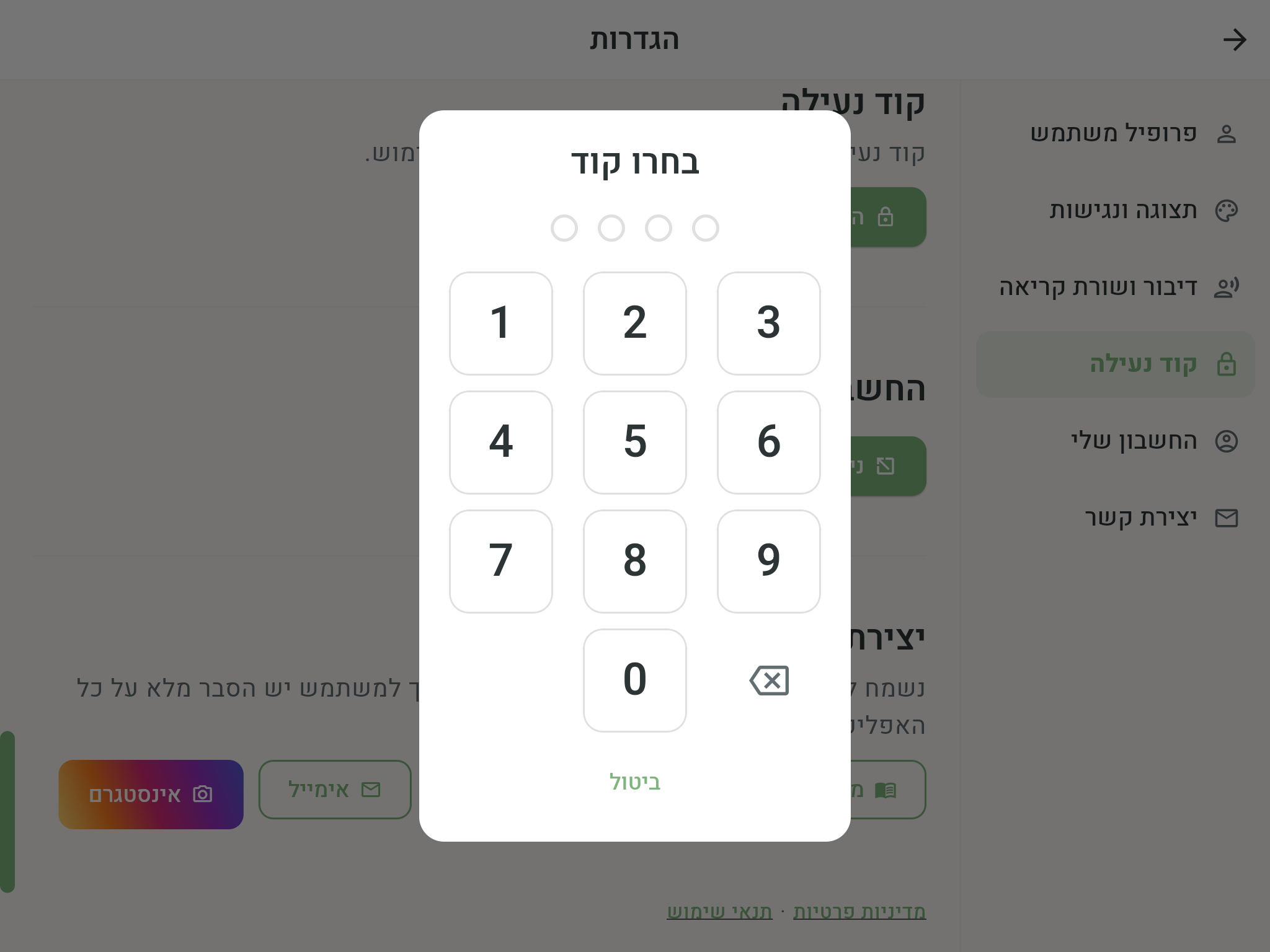
The code is stored on the device itself. If you've forgotten it, tap Forgot the code? in the code-entry dialog — signing in to your Emorli account will show you the code (an internet connection is required).
Remote control
Here you add the email addresses of professionals who will be able to create and edit boards for you remotely. The group appears only when you're signed in to an account. The full explanation — on the Sharing and collaboration page.
My account
- The email address of the signed-in account.
- Manage account — opens the account dashboard in the browser, already signed in.
- Sign out — signs out of the account on this device.
- Danger zone — two actions worth understanding before touching:
- Unlink this device — signs you out of the account and frees up a device slot on the license. The difference between unlinking and a regular sign-out is explained in License and devices.
- Delete account — permanently deletes the account, the license and all linked devices. This action cannot be undone.
Contact us
We're happy to help — with questions, feedback or support:
- The WhatsApp group of the Emorli community.
- Email — contact@emorli.com.
- Instagram — emorli_app.
Refresh data
At the bottom of the settings screen sits the Refresh data button: a manual pull of the latest updates — system settings, image and nikud improvements for words, and boards received through sharing. In most cases you won't need it, because sync runs automatically.